
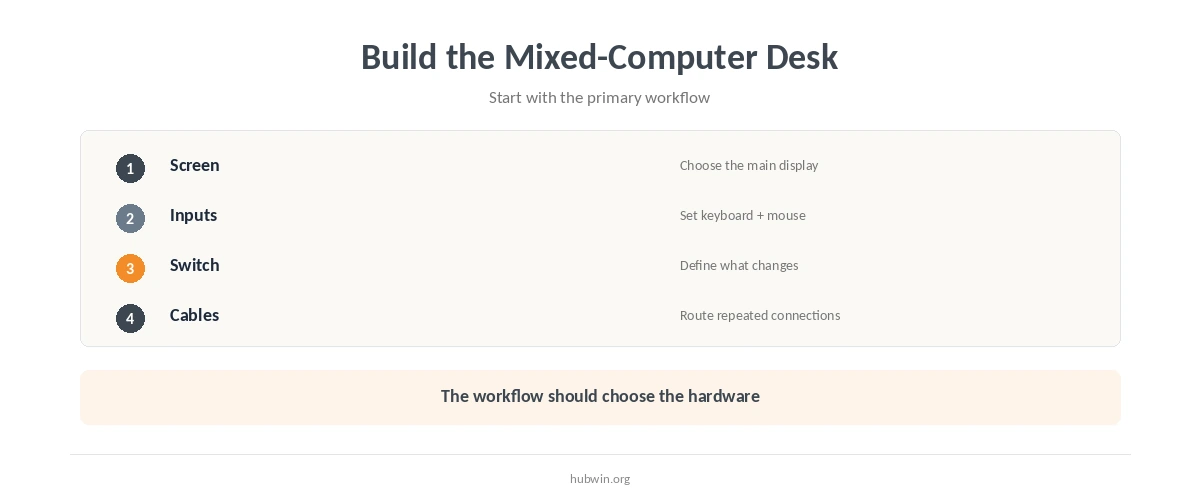
A good desk for laptop and desktop use starts with one primary working position. Decide which screen sits in front of you and which keyboard and mouse you use most. Then decide how the second computer connects without taking over the reach zone. Then solve switching and cables around that layout.
This keeps the workstation from becoming two complete setups squeezed onto one surface. Review the essential home-office setup and the best monitor layout before adding extra stands, docks, or peripherals.
Design a Desk for Laptop and Desktop Use Around the Primary Screen
OSHA recommends putting the monitor used most directly in front of the user when multiple displays are present. Apply the same rule to two computers. Choose the screen that supports the main work. Place the secondary laptop or display where it does not require constant head turning.
Use monitor height and monitor distance to set the primary screen. Set that screen first. Then use dual-monitor ergonomics if you work with more than one display for long periods.
Share the Keyboard and Mouse When That Makes the Desk Simpler
Two keyboards and two pointing devices can consume the primary work zone quickly. If your workflow allows it, use one keyboard and mouse that can switch between computers. A supported hardware switch, dock, monitor feature, or device connection method may handle the change. The goal is fewer repeated reaches and a clearer center position.
OSHA recommends keeping the keyboard and mouse close together and directly usable from the main position. See keyboard and mouse position, keeping frequent tools within reach, and external input devices for laptops.
Build the Desk for Laptop and Desktop Use with Enough Depth
The desk needs enough depth for the display arrangement and enough width for the computers you keep on the surface. OSHA purchasing guidance says the work surface should fit the monitor, keyboard, input device, and other work items. It should also preserve enough distance to the screen.
A laptop stand may free surface area underneath the computer, but it should not push the keyboard too far away. Compare whether a laptop stand is necessary, using a laptop stand correctly, and a laptop plus monitor setup.
| Approach | Advantage | Tradeoff |
|---|---|---|
| Shared keyboard and mouse | Keeps the center zone clear | Requires a reliable switching method |
| Separate input devices | Simple computer separation | Uses more desk space |
| Docked laptop | Fast connection to desk devices | Compatibility varies by hardware |
| Laptop as secondary screen | Adds display area without another monitor | May increase side viewing |

Give Each Computer a Defined Parking Position
Do not let the secondary computer drift into the mouse zone, notebook area, or chair approach. Give the laptop a stand, side position, or closed-dock location that remains consistent. Keep a desktop tower where ventilation and access to ports remain practical.
For compact rooms, use a functional desk in limited space and small-office zones. Give the chair a clear approach path. If the surface keeps filling up, keep only active tools on the desk.
Plan Switching and Cables as One System
Label the cables that move between computers, especially power, display, and data connections that look similar. If you reconnect the laptop frequently, keep those connectors reachable without pulling other cables loose. Avoid routing cables through the chair path.
Use organizing home-office cables and clean under-desk cable management for the physical route. Keep the switching method simple enough that changing computers does not become a setup project.
Design the Switching Routine Before Buying More Hardware
Write down what actually changes when you move from one computer to the other. You may need to switch only the keyboard and mouse. Another workflow may also change the display input, webcam, microphone, storage device, or network connection. The right hardware depends on that sequence.
A desk for laptop and desktop use becomes easier to operate when the switching routine has only a few predictable steps. If every change requires moving several devices by hand, simplify the layout first. You may be able to share more peripherals or keep one computer secondary.
Do not buy a complex switching device before confirming compatibility with your computers, displays, charging requirements, and peripherals. The desk plan should describe the workflow; the hardware should support it.
Keep the Secondary Computer Outside the Primary Reach Zone
The secondary machine still needs access, but it should not displace the keyboard, mouse, or main screen. A vertical laptop stand, side shelf, or dedicated corner can keep the computer available. The center of the desk can then stay clear.
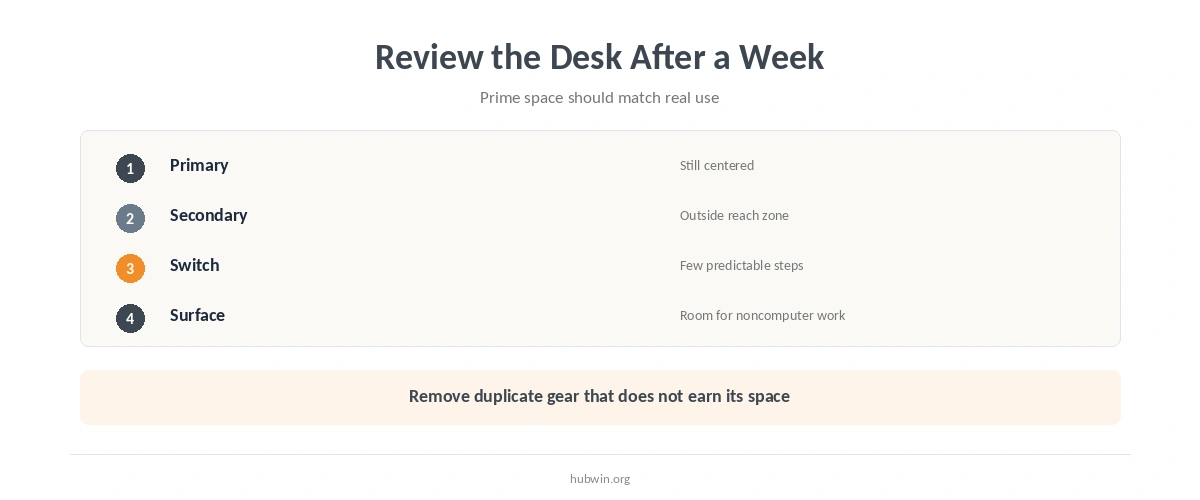
When a desk for laptop and desktop use feels crowded, remove duplicate accessories before increasing the desk size. Two full sets of input devices may help separate workflows. Use them deliberately rather than by default.
Also leave room for non-computer work. If you regularly write, review paper, or use a tablet, reserve a clear zone. Do not let both computers occupy the entire surface.
Finally, review the layout after a normal week. A desk for laptop and desktop use should make frequent switching easier. If you rarely use one machine at the desk, it may deserve a simpler parking position instead of permanent prime space.
How We Research Mixed Computer Workstations
HubWin does not recommend specific docks, switches, monitors, or laptop models. We use OSHA workstation guidance for monitor placement, work-surface depth, laptop input devices, and frequently used equipment, then apply it to a two-computer desk.
Sources reviewed October 9, 2026: OSHA Computer Workstations Purchasing Guide, OSHA Desks, and OSHA Monitors. Read how HubWin researches articles.
Not necessarily. One shared keyboard and mouse can keep the center work zone clearer if you have a reliable switching method.
Place it to the side or on a stand where it remains visible when needed but does not force the primary monitor away from the center.
No. A dock can simplify repeated connections, but the right choice depends on your laptop ports, displays, peripherals, and how often you move the computer.
Keep one primary work position, enough monitor depth, usable keyboard and mouse space, clear leg room, and a predictable switching and cable system.