
This article is general information, not medical advice. If pain is severe, lasting or getting worse, talk to a doctor. Read our health disclaimer.
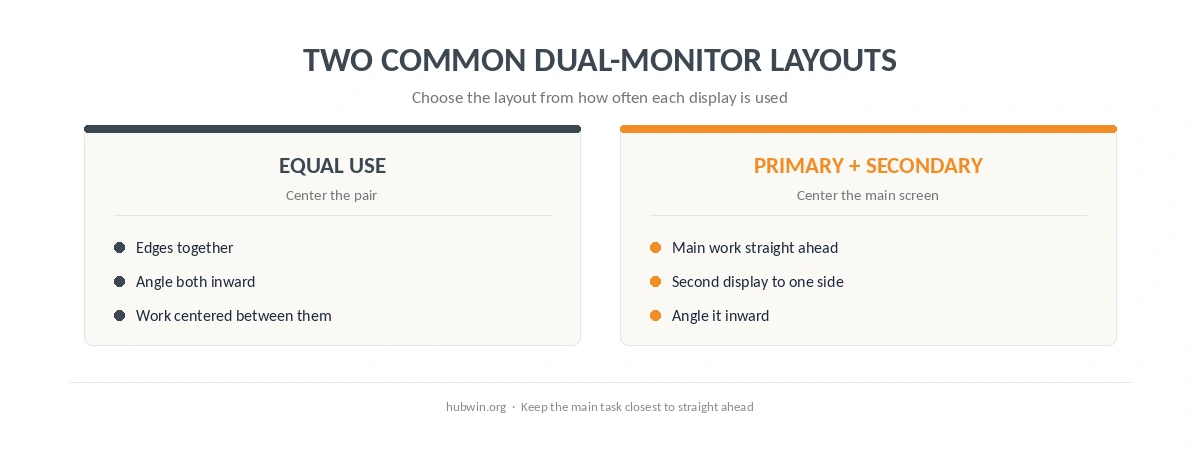
How to set up dual monitors ergonomically depends on whether you use both screens equally. CCOHS says equal-use monitors should sit in front of you with their edges touching and angled into a shallow semicircle. If one screen does most of the work, place that screen directly in front and angle the secondary display to one side. Read the CCOHS monitor guidance.
How to Set Up Dual Monitors Ergonomically When You Use Them Equally
For equal use, bring the inner edges together and angle both screens toward you. Center the pair around your normal working position. Keep the screens at the same height. CCOHS says the displays should remain about an arm’s length away, using the same general viewing rules as a single monitor. The monitor-height guide explains the official height differences in more detail. For context, the office ergonomics overview puts those screen rules in the context of the whole workstation.
The core of how to set up dual monitors ergonomically is reducing repeated side-to-side head and body rotation. Do not put one screen straight ahead and the other far off to the side if you use them equally. Likewise, avoid creating a large gap between displays that forces your eyes and head to travel farther than necessary.
How to Set Up Dual Monitors Ergonomically With a Primary Screen
If one monitor carries most of your reading, writing or coding, place it directly in front of you. Put the second screen beside it and angle it inward. That follows CCOHS guidance and keeps the main task aligned with your normal seated position. Use the sitting-posture guide and keyboard-and-mouse guide to keep the rest of the workstation centered too. If one screen is a laptop, the laptop-and-monitor guide covers that mixed setup.
Another part of how to set up dual monitors ergonomically is viewing distance. OSHA prefers 20–40 inches (50–100 cm) for typical monitor viewing, while CCOHS uses an arm’s-length starting point and allows individual adjustment. Do not average those recommendations into one invented number. The monitor-distance guide keeps the source ranges separate.
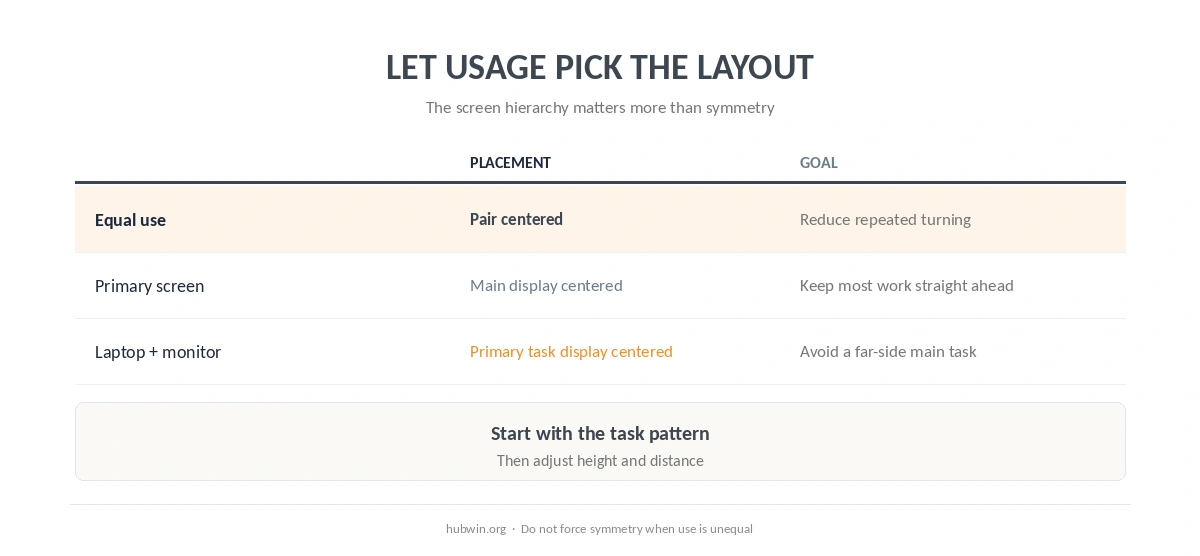
| How you use the screens | Placement | Main goal |
|---|---|---|
| Both about equally | Edges together, pair centered | Reduce repeated twisting in either direction |
| One is primary | Primary centered, secondary angled | Keep most work straight ahead |
| Laptop plus monitor | Primary task screen centered | Avoid treating the laptop as a far-side display |
Match Height, Text Size and the Rest of the Desk
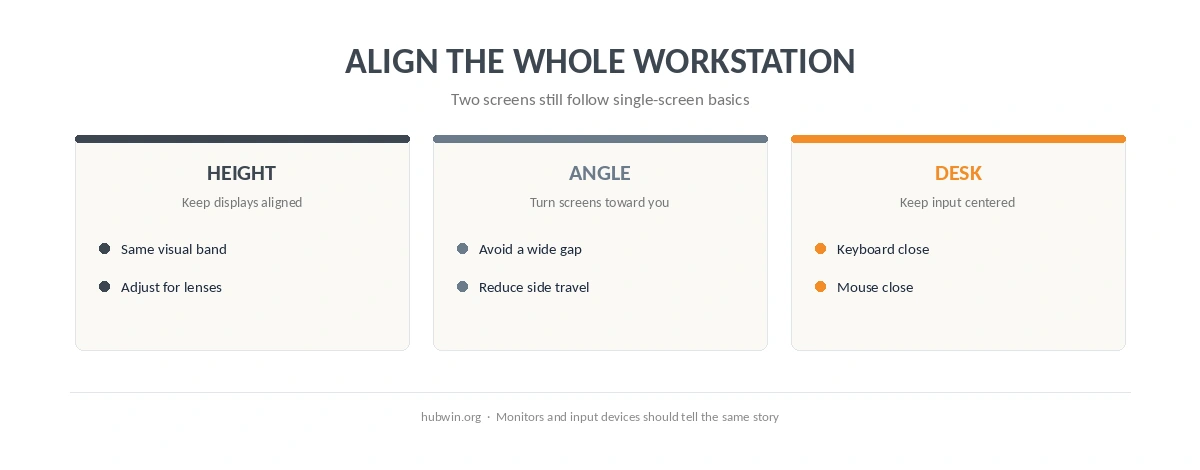
OSHA says the top line of a typical screen should sit at or below eye level. CCOHS also advises keeping multiple monitors at the same height. If you use progressive or other corrective lenses, a slightly lower position may feel more natural. Adjust text size before pulling a screen closer simply to read it. The daily posture checklist is a quick way to catch alignment drift after you move either display.
The monitors also need enough desk depth. OSHA notes that insufficient depth can push a screen too close. A corner can create more usable viewing distance. The small-home-office guide covers compact layouts, and the apartment setup guide shows how to use limited floor area without giving up the main viewing position.
How We Research
HubWin read CCOHS monitor-positioning guidance, confirmed current July 21, 2025, and OSHA monitor guidance on October 8, 2026. We use CCOHS for the equal-use versus primary-screen distinction and OSHA for viewing-distance and desk-depth guidance. Read the OSHA monitor page. Learn how HubWin researches articles.
FAQ
Yes if you use both about equally. Center the pair and angle the screens toward you.
Place the primary monitor directly in front of you and angle the secondary monitor to one side.
CCOHS recommends keeping them at the same height while following the general single-monitor placement rules.
Use the same viewing-distance guidance as for one monitor. OSHA prefers 20–40 inches (50–100 cm), while CCOHS uses about an arm’s length as a starting point. A related ergonomics guide covers monitor arm vs monitor stand.
Not necessarily. Matching size can make alignment easier, but position, text readability and how often you use each screen matter more.
The Bottom Line
The practical answer to how to set up dual monitors ergonomically is to let usage decide the layout. Center equal-use screens as a pair. Center a primary screen by itself when it dominates the work. Then match height, distance and the rest of the workstation.