This article is general information, not medical advice. If pain is severe, lasting or getting worse, talk to a doctor. Read our health disclaimer.
A daily posture checklist should help you reset the workstation, not hold one rigid pose for hours. OSHA says there is no single correct posture or component arrangement that fits everyone. HSE likewise focuses on a supported setup and regular changes of activity. A related checklist covers morning checklist.
Run the checklist at the start of work, after a long meeting, or whenever the chair or equipment has moved. The goal is to restore support and easy reach, then change position during the day. If you want the longer explanation behind each item, start with the desk posture guide. For a related evidence check, see chair setup.
Posture Checklist: Start With Support and Reach
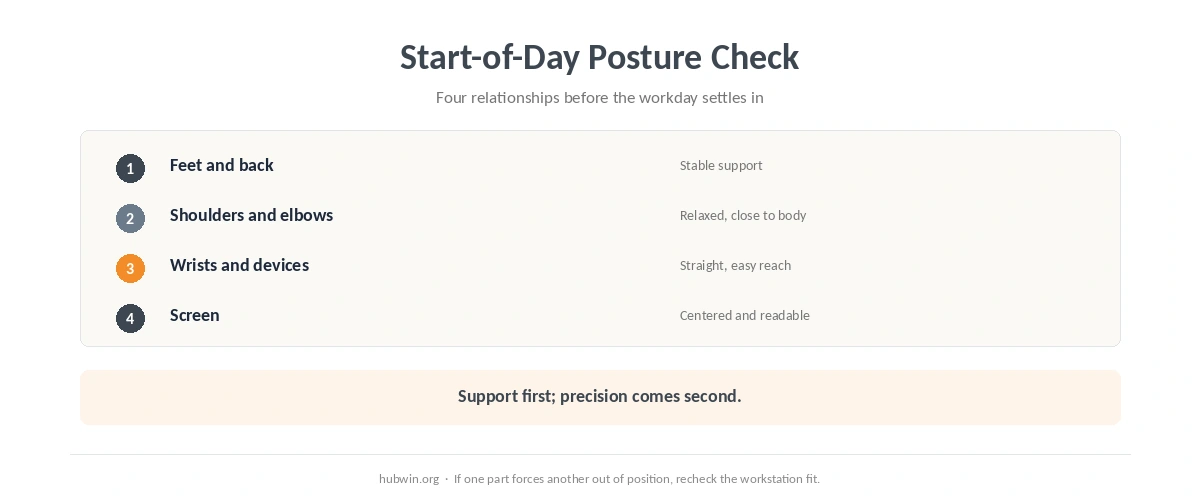
- Feet: Both feet have stable support from the floor or a footrest.
- Lower back: The backrest supports you without forcing you to perch on the front of the seat.
- Seat depth: The front edge does not press into the back of the knees.
- Shoulders: They can stay relaxed rather than raised to reach the work surface.
- Elbows: They stay close to the body while you type or point.
- Wrists: They remain close to straight instead of bending sharply up, down or sideways.
- Keyboard: It sits directly in front and close enough to avoid reaching.
- Mouse: It stays beside the keyboard and within easy reach.
- Screen: It sits directly in front rather than requiring a sustained head turn.
- Screen height: HSE puts the top around eye level; OSHA says at or slightly below eye level.
- Distance: HSE uses about an arm’s length; OSHA gives 20–40 inches (50–100 cm).
- Movement: The day includes breaks or changes of activity instead of one static position.
Posture Checklist: Recheck the Parts That Drift During the Day
The chair often drifts first. Shared chairs change height, armrests move, and people slide forward during calls. The office-chair adjustment guide gives a full reset sequence. If the seat only works after you raise it high enough to lose foot support, check the desk relationship rather than blaming the chair.
Input devices drift too. A mouse can migrate outward as papers or cups take over the desk, while the keyboard moves forward until the elbows no longer stay near the body. Use the keyboard and mouse position guide when the posture checklist reveals a reach problem.
| What drifted | First reset | Related guide |
|---|---|---|
| Feet no longer supported | Recheck chair height and desk relationship | Chair adjustment |
| Shoulders rise while typing | Recheck keyboard/work-surface height | Keyboard and mouse |
| Mouse arm reaches outward | Move pointer beside keyboard | Keyboard and mouse |
| Head turns or tilts for the screen | Recenter screen and check height | Monitor height |
| You lean toward small text | Check viewing distance and text size | Monitor distance |
| You have stayed still for a long block | Change activity or take a short break | Microbreaks |

Use the Posture Checklist With Movement, Not Against It
A posture checklist is a reset tool, not a command to freeze. OSHA’s workstation guidance encourages variation, and HSE says display-screen work should include breaks or changes of activity. The microbreak guide explains why short, frequent changes are generally preferred over waiting for one long break.
For screen placement, use the official ranges rather than one magic point. The monitor-height guide compares OSHA, HSE and CCOHS, while the monitor-distance guide shows why different agencies publish different practical ranges.

Related: For the next step, use our shoulder-pain guide. If the second issue is closer to your problem, see the hand-pain guide.
How We Research
HubWin checked current OSHA computer-workstation guidance, the OSHA workstation evaluation checklist, and HSE good-posture guidance on October 8, 2026. See About HubWin for our research method.
FAQ
Use it when you start work and whenever the workstation has clearly drifted. Shared desks, long meetings and equipment moves are useful reset points.
No. OSHA explicitly says there is no single correct posture or arrangement that fits everyone. Support, neutral reach and position changes matter more than freezing in one pose.
HSE places the top of the screen around eye level, while OSHA says at or slightly below eye level. Individual factors such as corrective lenses can change what is comfortable.
HSE uses about an arm’s length as a practical guide. OSHA gives a broader 20–40 inches (50–100 cm) range, so screen size, text size and vision still matter.
Do not force a position because it matches a diagram. Recheck the workstation fit, vary position, and seek medical advice if pain is severe, lasting or getting worse.
Bottom Line
A useful posture checklist restores support, easy reach and sensible screen placement, then leaves room to move. Check the workstation when it drifts; do not try to hold one textbook pose for the entire day.