
This article is general information, not medical advice. If pain is severe, lasting or getting worse, talk to a doctor. Read our health disclaimer.
A laptop monitor setup works best when you choose the primary screen first. Then arrange the keyboard, mouse and displays around that choice. HSE recommends a separate keyboard and mouse for prolonged laptop use so the screen can be elevated or paired with a separate display. See HSE’s current DSE setup guidance.
Choose the Primary Screen in Your Laptop Monitor Setup
Start by deciding where most of the work happens. When the external monitor carries the main task, place it directly in front of you. Keep the laptop to the side. When you split attention evenly, keep the displays close together. This limits large head movements. CCOHS uses the same basic distinction for multiple monitors: the most-used screen belongs in front, while equally used screens should sit together. Read the CCOHS monitor-positioning guidance. A dedicated setup guide covers portable office.
- Pick the main display. Put the screen that holds your primary work directly ahead.
- Separate input from the laptop. Use an external keyboard and mouse when the laptop is raised for longer sessions.
- Keep screen heights compatible. Avoid a layout that makes you repeatedly look far up and down between displays.
- Bring the displays together. Large gaps create more head and eye travel than the same screens placed as one visual group.
- Recheck viewing distance. You should be able to read the main screen without leaning toward it.
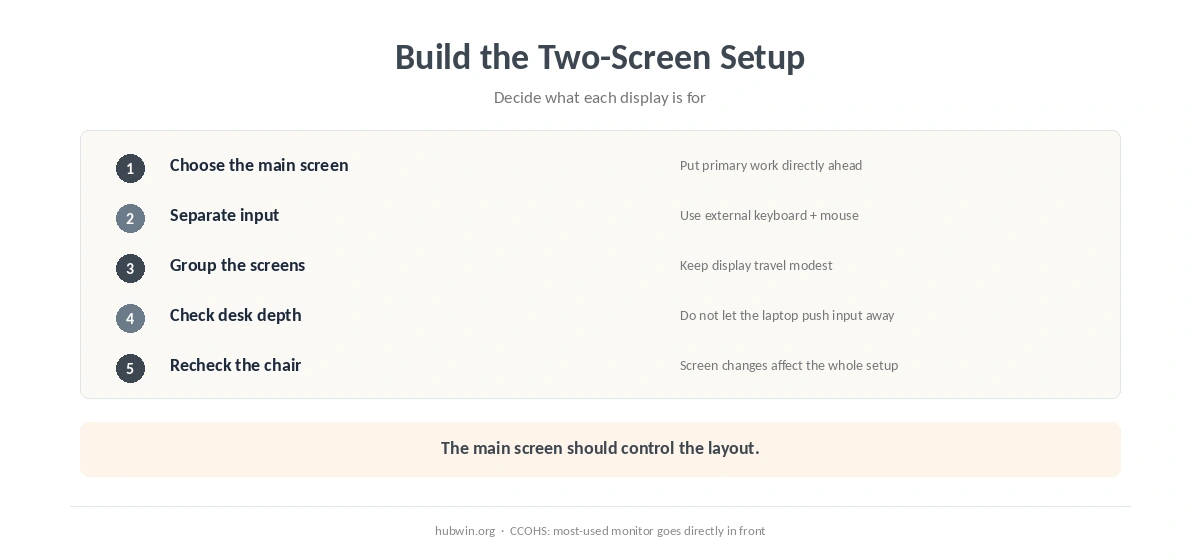
If you are using only the laptop, the laptop ergonomics guide covers the basic screen-and-keyboard tradeoff. Once a second screen enters the setup, the important change is deciding which display controls your body position.
Build the Laptop Monitor Setup Around Keyboard and Mouse Reach
A laptop monitor setup can look tidy while the keyboard and mouse still sit too far away. OSHA recommends keeping the keyboard directly in front and the pointing device next to it, with the elbows close to the body. The keyboard and mouse position guide gives the detailed setup sequence.
Do not let the laptop base become an obstacle between you and the external keyboard. If the laptop sits centered below the external monitor, make sure it does not push the keyboard forward. A vertical stand, side placement or closed-lid mode may create more usable desk depth, depending on the computer and cooling requirements. For that specific layout, see a desk for laptop and desktop use.
Next, check the chair and surface together. The chair adjustment guide helps set the base position, while the sitting desk-height guide explains why elbow relationship matters more than copying one fixed desk height.

Use Screen Position to Reduce Unnecessary Turning
OSHA recommends putting the monitor directly in front of the user and placing additional monitors beside it. CCOHS similarly says the most frequently used monitor should sit directly ahead. For a laptop monitor setup, that means the external screen should not live off to one side if it carries the main coding, writing or spreadsheet work.
Set the screen high enough for straightforward viewing, but avoid chasing a perfect line from a diagram. OSHA places the top of the screen at or below eye level, while HSE illustrates the top around eye level. Our monitor-height comparison explains those differences. For viewing distance, use the official-range comparison rather than one universal number.

Finish the Laptop Monitor Setup With Light and Desk Space
Once the geometry works, check reflections, cable clutter and desk depth. OSHA recommends placing a monitor perpendicular to windows to reduce glare. The home-office lighting guide covers window and task-light placement, while the cable-management guide helps keep the floor and work surface usable.
Finally, run the whole arrangement through the home-office ergonomics checklist. A two-screen workstation is still one system, so a screen change may require another keyboard, chair or lighting adjustment.
Related: If that is the part of the setup you are working on next, continue with our coding home-office setup guide.
How We Research
HubWin checked current HSE DSE guidance, the OSHA workstation evaluation checklist, OSHA monitor and keyboard guidance, and the CCOHS monitor-positioning fact sheet on October 8, 2026. We use the agencies’ recommendations as practical starting points and note where their wording differs. Learn how HubWin researches articles.
FAQ
Center whichever display you use most. If usage is truly even, keep both screens close together and arrange them as one visual group.
For longer laptop sessions, HSE recommends separating the keyboard and mouse so screen placement is not tied to the laptop keyboard.
Yes, if it does not push the external keyboard too far away or force repeated large changes in viewing direction.
Keeping them reasonably aligned can reduce repeated vertical head movement. The primary screen still deserves the best position.
Treat it as the secondary display. Keep the main monitor centered and place the laptop close enough that occasional glances do not require a large turn.
The Bottom Line
A clean laptop monitor setup starts with one decision: which screen is primary. Center that display, keep the keyboard and mouse close, place the second screen beside it, and then finish with lighting, cable and chair adjustments.