
This article is general information, not medical advice. If pain is severe, lasting or getting worse, talk to a doctor. Read our health disclaimer.
An ergonomic setup for laptop users solves one basic design conflict: the screen and keyboard are attached to each other. If the laptop sits low enough for comfortable typing, the screen is often low. If you raise the screen toward eye height, the built-in keyboard becomes too high to use normally. HSE and NIOSH therefore recommend separating those functions for prolonged work. A related ergonomics guide covers ergonomic setup for short users.
Ergonomic Setup for Laptop Users: The Short Answer
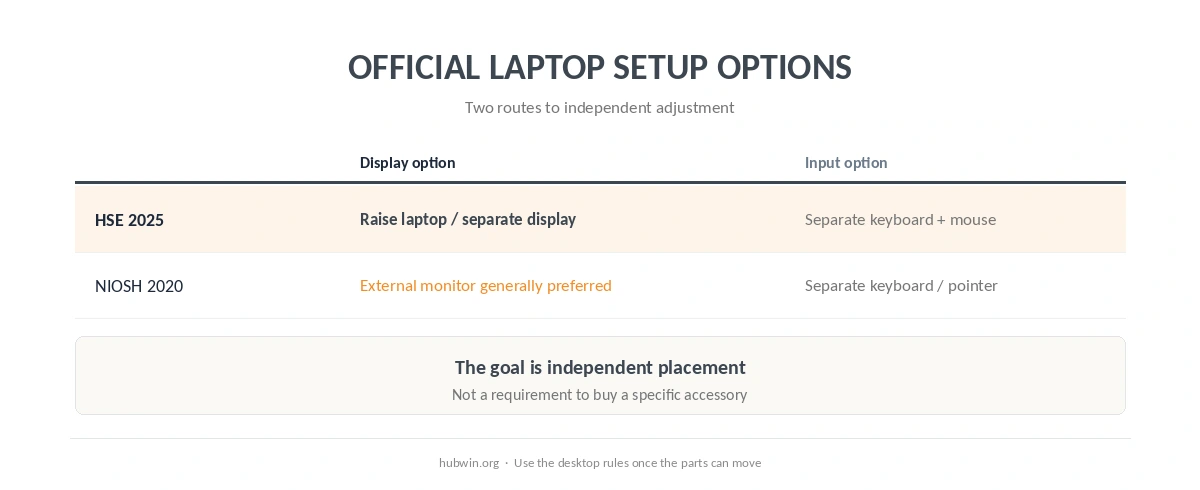
HSE’s 2025 DSE guidance says prolonged laptop use should include a separate keyboard and mouse so the screen can be elevated on a riser or similar support. It also lists a separate display as an option. NIOSH’s 2020 home-work guidance similarly recommends an external monitor when possible and separate input devices when using the laptop display. For a related evidence check, see working from bed.
Therefore, the practical goal is simple: make the laptop behave more like an adjustable desktop workstation. Once the screen and input devices can move independently, use the same monitor and keyboard rules covered in our office ergonomics guidelines.

Why an Ergonomic Setup for Laptop Users Needs Separation
A laptop hinge controls only the angle between the screen and keyboard. It does not let you independently set screen height, keyboard height and viewing distance. That is why one-piece use often creates a compromise between neck position and hand position. An ergonomic setup for laptop users therefore needs separate control of screen position and hand position during prolonged desk work. If that setup matches your space, see student home office.
OSHA’s keyboard guidance notes that smaller laptop keyboards can contribute to stressful wrist positions. Meanwhile, HSE specifically calls for separate input devices during prolonged laptop use. The guidance does not say every short laptop task needs a dock, but it clearly treats prolonged desk use differently from temporary portable use. A related ergonomics guide covers ergonomic keyboard.
Set the Screen First, Then Bring the Keyboard Back Down
When using the laptop display, raise it until the screen can meet the same height target as a regular monitor. HSE says the top of the screen should sit level with the eyes at about an arm’s length. OSHA says the top should sit at or slightly below eye level. Our monitor-height guide explains the wording difference.
After you raise the screen, stop using the built-in keyboard for long desk sessions. Instead, place a separate keyboard around elbow height and keep the mouse close. That restores independent control of the hands and display.
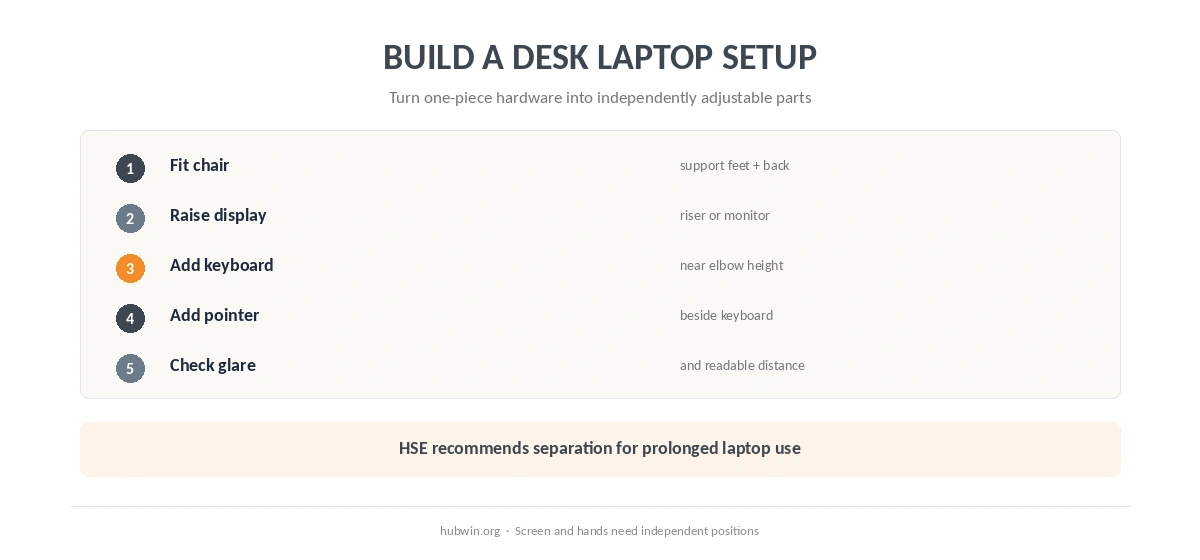
Build an Ergonomic Setup for Laptop Users in Five Steps
- Set the chair and feet. Start with a supported sitting position before moving the computer.
- Raise or separate the display. Use a stable riser for the laptop screen or an external monitor.
- Add a separate keyboard. Put it directly in front around elbow height or just below it.
- Add a separate mouse or pointer. Keep it beside the keyboard and within easy reach.
- Recheck distance and glare. Keep text readable without leaning forward and position the display to limit window glare.
For the input devices, use the same checks in our keyboard and mouse position guide. The wrists should stay straight, the elbows should remain close to the body and the shoulders should stay relaxed.
External Monitor vs Raised Laptop Screen
NIOSH says an external monitor is generally more ideal for display and suggests about an arm’s length with the top at or below eye level. HSE also lists a display separate from the laptop. However, neither source says an external monitor is mandatory for every home setup.
A stable laptop riser plus external keyboard and mouse can solve the same screen-height problem when the laptop display is large enough and readable at the required distance. By contrast, an external monitor can offer more freedom over screen size, distance and placement.
Do Not Put the Laptop on Your Lap for Long Desk Work
The concern here is not a special medical claim about laptop heat. It is workstation geometry. A laptop on the lap places the display low and the keyboard close to the body in a position that is difficult to adjust independently.
NIOSH’s home-work guidance says couches and soft chairs are poor primary work positions because they provide limited support and make workstation adjustment harder. Therefore, NIOSH’s 2020 guidance favors a work-ready setup with supported seating; a stable surface gives you more control over device placement than a couch.
Ergonomic Setup for Laptop Users When You Travel
Portable work often means you cannot recreate a full desk. In that case, prioritize the longest task. If you will type for an extended period, a separate keyboard and pointer give you more control over the hands. If you mainly read or join a call, raising the display may matter more for that period. A travel-friendly ergonomic setup for laptop users can be simpler, but the same priority remains: reduce the longest-lasting compromise first. For that related claim, see the evidence on a realistic ergonomic setup.
Still, the goal is variation rather than one improvised posture all day. NIOSH recommends regular posture changes and periodic breaks. HSE likewise treats workstation arrangement and work routine as separate parts of DSE safety.
A Laptop Does Not Change the Monitor-Distance Rules
Increasing font size can help you keep a readable distance instead of pulling the laptop closer and leaning forward. NIOSH explicitly suggests enlarging text when needed. For the distance ranges and differences between OSHA, HSE and CCOHS, see our monitor-distance guide.
In addition, keep the display perpendicular to windows when practical or control blinds to reduce glare. NIOSH includes both ideas in its home-work guidance. They matter because people often move laptops into temporary spaces with less controlled lighting.
Related: For the next step, use our neck-pain guide. If the second issue is closer to your problem, see the laptop-plus-monitor setup guide.
How We Research
HubWin does not test laptop stands or accessories. The HubWin Team read HSE DSE posture guidance dated March 20, 2025; NIOSH Working from Home guidance posted November 20, 2020; and OSHA keyboard guidance, checked October 7, 2026. See About HubWin for how we use official guidance and note its limits.
FAQ
For prolonged desk work, separate the keyboard and mouse from the screen, then raise the laptop display or use an external monitor so each part can be positioned independently.
Not necessarily. HSE allows raising the laptop screen with separate input devices, while NIOSH says an external monitor is generally more ideal when available.
For prolonged typing, that creates a new problem because raising the screen also raises the built-in keyboard. HSE specifically recommends a separate keyboard and mouse for prolonged use.
Use the same starting point as a monitor: HSE says top of screen level with the eyes, while OSHA says at or slightly below eye level.
NIOSH advises against couches or soft chairs as primary work positions when possible because they make support and workstation adjustment difficult.
Bottom Line
An ergonomic setup for laptop users separates the display from the input devices for prolonged desk work. Raise the screen or use an external monitor, then place a separate keyboard and mouse where the elbows and wrists can stay neutral. The point is not more accessories; it is independent adjustment. For that workstation detail, see ergonomic setup for tall users.