
This article is general information, not medical advice. If pain is severe, lasting or getting worse, talk to a doctor. Read our health disclaimer.
This home office ergonomics checklist turns official workstation guidance into 18 yes-or-no checks. It follows the same order used across our office ergonomics guidelines: support the body first, place the input devices next, then position the screen and make room for movement. A related how-to guide covers workspace improvements.
Home Office Ergonomics Checklist: The 60-Second Version
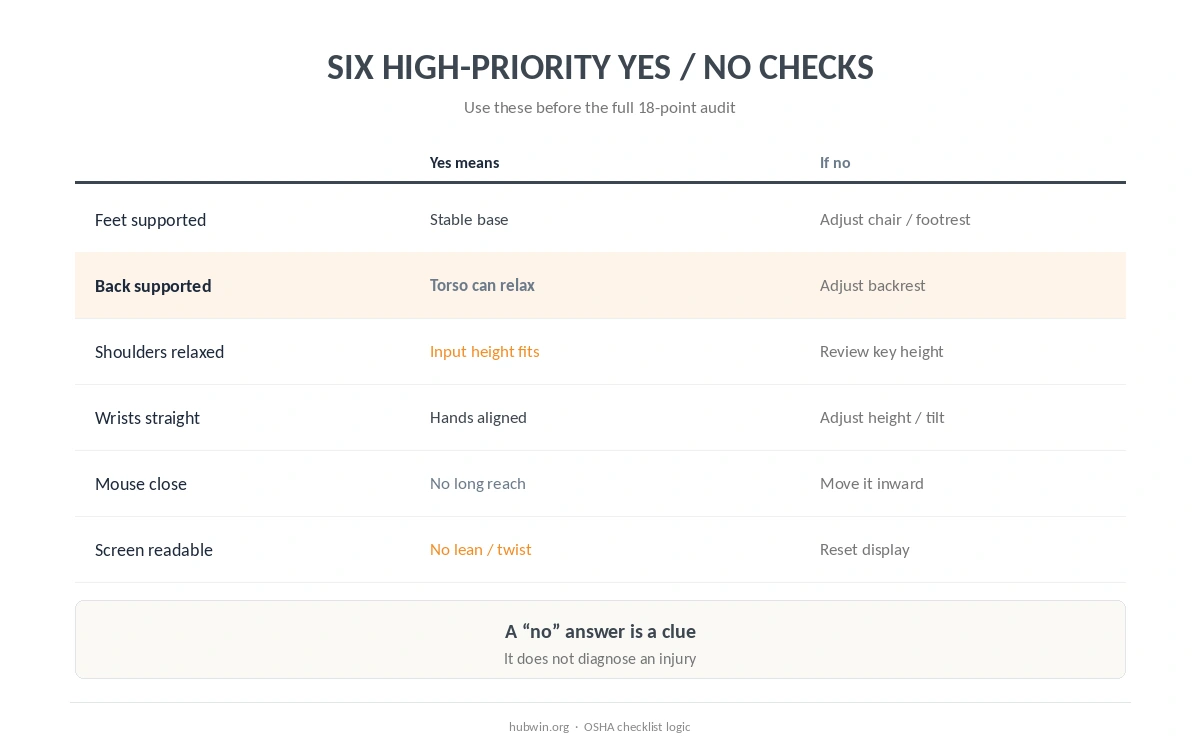
Start with six questions. Are your feet supported? Does the chair support the lower back? Can your shoulders stay relaxed? Are the wrists straight? Is the mouse within easy reach? Can you read the screen without leaning or twisting? If any answer is no, that part of the workstation deserves adjustment. This quick home office ergonomics checklist catches the largest support, reach and viewing problems before you fine-tune details. If you want to review that systematically, use home office checklist.
OSHA’s evaluation checklist uses the same logic: a “no” answer identifies a potential problem area rather than proving that an injury will occur. Therefore, use this page as a setup audit, not as a medical test.
Home Office Ergonomics Checklist: Chair and Feet
- 1. Feet: both feet rest on the floor or on a stable footrest.
- 2. Lower back: the backrest supports the lumbar area without pushing you away from the desk.
- 3. Seat edge: the front edge does not press into the back of the legs.
- 4. Thighs: the seat supports them without trapping them under the work surface.
- 5. Armrests: they do not lift the shoulders or block the chair from moving close to the desk.
If this section fails, adjust the chair before changing the monitor. Our office chair adjustment guide gives the sequence and shows where HSE and CCOHS use different seat-edge clearance checks.
Home Office Ergonomics Checklist: Keyboard and Mouse
- 6. Keyboard: it sits directly in front of you.
- 7. Elbows: they stay close to the torso instead of reaching forward or sideways.
- 8. Wrists: hands and forearms remain in one straight line.
- 9. Keyboard height: the key surface sits around elbow height or just below it.
- 10. Mouse: it sits beside the keyboard and stays inside easy reach.
OSHA, HSE and CCOHS all support these relationships. However, exact angles and wording differ slightly. Use our keyboard and mouse position guide when one of these checks fails.

Home Office Ergonomics Checklist: Monitor
- 11. Direction: the primary screen sits directly in front rather than forcing the neck to twist.
- 12. Height: the top of the screen starts around eye level or slightly below, depending on the source and your lenses.
- 13. Distance: text stays readable without leaning forward.
- 14. Glare: windows and lights do not create distracting reflections on the display.
OSHA prefers a viewing distance of 20–40 inches (50–100 cm). HSE uses about an arm’s length. CCOHS illustrates 15.7–29.1 inches (40–74 cm) and explicitly notes that published recommendations differ. Therefore, do not force one number if another source uses a different reference range.
Laptop Check
15. For prolonged laptop work: can the screen and input devices move independently? HSE’s 2025 guidance recommends a separate keyboard and mouse so the laptop screen can be elevated, or a separate display. See our ergonomic laptop setup if the built-in screen and keyboard force a compromise.
Movement and Work-Routine Checks
- 16. Position changes: the workstation lets you change posture instead of locking you into one position.
- 17. Breaks: your routine includes short opportunities to get up, move or change activity.
- 18. Frequently used items: the keyboard, mouse, phone and other regular tools stay within easy reach.
OSHA says even a good posture should not remain static for prolonged periods. HSE also favors short, frequent breaks over fewer long breaks. Therefore, the checklist is incomplete if the furniture looks good but the work routine still keeps you motionless for long stretches.

What to Fix First When Several Checklist Items Fail
| Failed check | Review first | Why |
|---|---|---|
| Feet unsupported | Chair height or footrest | Creates the base for the rest of the seated setup |
| Shoulders raised | Chair and keyboard height | Input surface may sit too high |
| Wrists bent | Keyboard height or tilt | Neutral hand position is the target |
| Mouse requires reaching | Mouse location or keyboard width | Pointer should stay close to the keyboard |
| Neck twists | Primary monitor position | Main screen should sit in front |
| Laptop forces low screen | Separate input devices or display | Lets screen and keyboard move independently |
Do Not Treat the Checklist as a Search for One Perfect Posture
OSHA explicitly says there is no single correct posture or component arrangement that fits everyone. CCOHS makes the same point through adjustability and user fit. Therefore, a pass means the setup supports you and allows variation; it does not mean you must freeze in that position. A useful home office ergonomics checklist therefore checks adjustability and movement as well as static alignment.
In addition, a checklist cannot diagnose the cause of pain, numbness or vision changes. Persistent or worsening symptoms deserve medical advice rather than endless workstation tweaking. If that setup matches your space, see programmer home office.
Related: For the next step, use our daily posture checklist. If the second issue is closer to your problem, see the wrist-pain setup guide.
How We Research
HubWin adapted this checklist from OSHA’s Computer Workstations evaluation checklist, checked October 7, 2026; HSE DSE posture guidance dated March 20, 2025; and current CCOHS office-ergonomics guidance on chairs, keyboards and mice. We also cross-checked the laptop section against NIOSH home-work guidance posted November 20, 2020. See About HubWin for our research method.
FAQ
At minimum: chair and foot support, seat fit, keyboard and mouse position, monitor height and distance, laptop setup when relevant, and regular opportunities to change position.
Use it whenever the workstation changes, after moving equipment, or when a shared setup needs to fit a different person. Recheck after any major adjustment.
No. A checklist reduces obvious workstation mismatches but cannot guarantee that symptoms will not occur or identify their medical cause.
Start with the base: chair height, foot support and access to the desk. Then set keyboard and mouse position, followed by the monitor.
The same body-position goals apply, but a laptop couples the screen and keyboard. HSE recommends separating them for prolonged work.
Bottom Line
A home office ergonomics checklist works best as a sequence, not a shopping list. Support the feet and back, bring the keyboard and mouse to relaxed arms, position the screen for easy viewing, and keep room for movement. When one item fails, adjust the relationship that caused it before adding another accessory.