
A minimal home office checklist should help you get a workable setup with the fewest moving parts. Start with the surface, chair, screen, input devices, lighting and clear floor space. CCOHS says a home office should meet normal workplace health and safety requirements where possible, while OSHA’s workstation checklist focuses on how the components fit together rather than on buying a particular product. See the OSHA workstation checklist. For that specific layout, see student home office.
Minimal Home Office Checklist: The Six Things to Get Working First
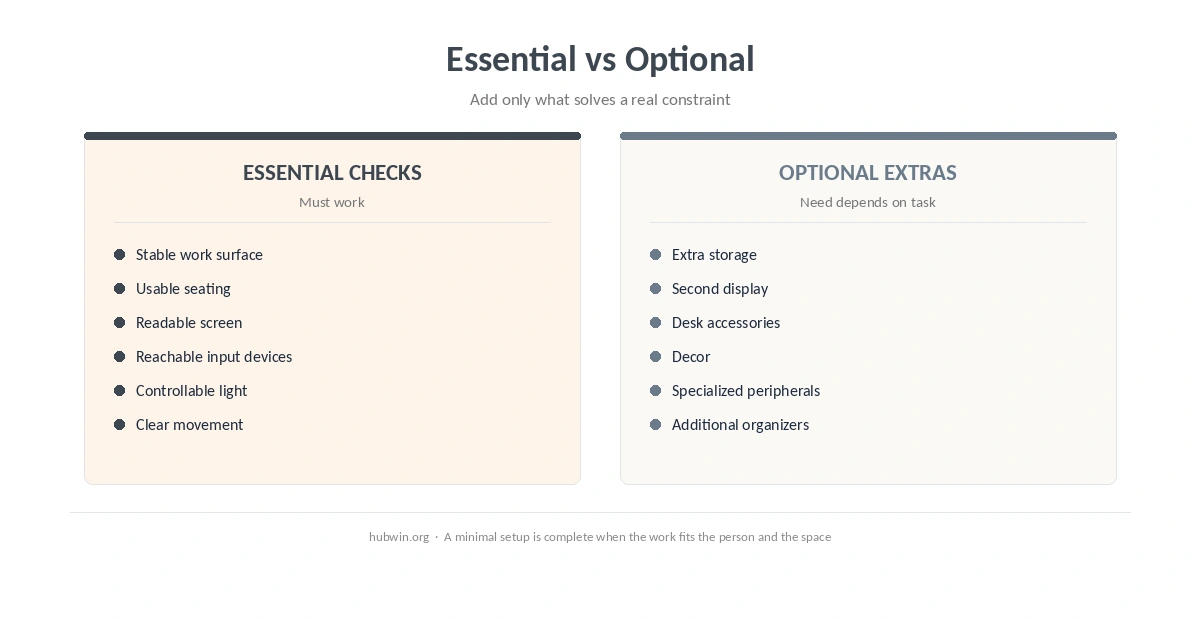
- Work surface: stable, large enough for the task and positioned so you do not have to crowd the keyboard or screen.
- Chair and foot support: a stable seat that lets you work with the feet supported and the back supported.
- Screen: directly in front of you, readable and placed to avoid obvious glare.
- Keyboard and mouse: close enough that the shoulders can stay relaxed and the wrists do not need an awkward reach.
- Lighting: enough for the task, with window and fixture reflections controlled.
- Clear movement: enough room for the chair and feet, with loose cables and clutter out of the walking path.

If you are starting from almost nothing, the minimal home office setup guide explains what each component is for. The beginner home office guide gives a broader order for building the workspace over time. If that is the part you are changing next, see workspace improvements.
Use the Minimal Home Office Checklist in the Right Order
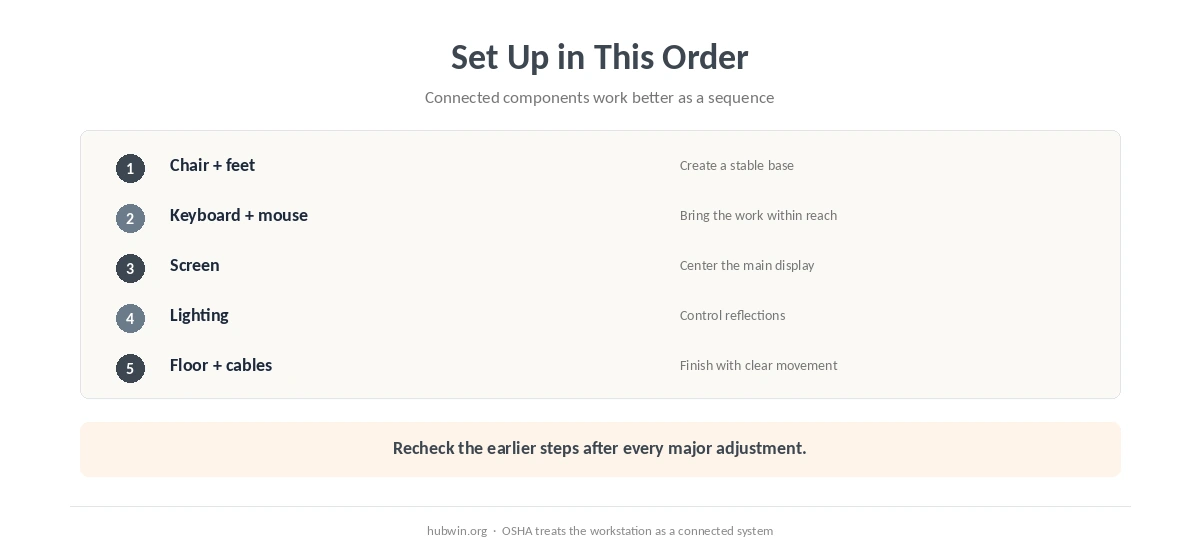
Use the minimal home office checklist as a sequence rather than adjusting each item in isolation. Chair height affects how your hands meet the desk. Desk height affects whether the feet stay supported. Screen placement affects how far forward you lean. OSHA’s computer-workstation guidance explicitly treats the monitor, keyboard, desk and chair as connected components. That is why the checklist works best as a sequence rather than six separate purchases.
- Set the chair and feet. Establish a stable working position first.
- Check keyboard and mouse reach. Bring input devices toward you before reaching farther.
- Place the screen. Center it for the main task and make the text readable.
- Control glare. Turn the desk or screen before adding more light.
- Clear the floor and cables. Make sure the finished setup is easy to enter and leave.
For detailed adjustments, use the office chair guide, the keyboard and mouse guide and the monitor height guide. Those pages go deeper than a minimal checklist should.
What the Minimal Home Office Checklist Does Not Require
A minimal home office checklist does not require a room full of accessories. A separate monitor can be useful for a laptop-heavy setup, but the core requirement is that the screen and input devices can be positioned comfortably for the way you work. Likewise, storage matters only when it helps keep the active area and movement path usable.
If you are working in a tight room, the small office guide covers layout tradeoffs. If cables are the weak point, the cable management guide focuses on routing and access. For a more complete audit once the basics are in place, use the 18-point ergonomics checklist.
How We Research
HubWin builds setup checklists from official ergonomics guidance rather than product lists. For this article, we read the current OSHA computer-workstation evaluation checklist and CCOHS telework guidance. We checked the sources on October 8, 2026. We also compared the steps with our existing chair, monitor, input-device and cable guides so the checklist stays consistent across the site. Learn how HubWin researches articles.
FAQ
A stable work surface, usable seating, a readable screen, reachable input devices, workable lighting and clear movement space are the practical basics.
You need a stable seat that can support the way you work. A dedicated office chair can make adjustment easier, but the checklist starts with fit rather than a label.
Not always. Laptop users often benefit from separating screen height from keyboard position, but the exact equipment depends on how long and how intensively you work at the setup.
Fix the constraint that forces the rest of the setup out of position. Often that means chair and desk relationship, then input devices and screen.
No. This is the short version for getting the essentials working. The full HubWin ergonomics checklist goes through more detailed workstation checks.
The Bottom Line
Use this minimal home office checklist to get the basics working before adding accessories. Set the chair and work surface together, bring the keyboard and mouse within easy reach, place the screen, control glare and keep the floor clear. Once those pieces work, refine only what your actual tasks require.