A desk can look unchanged while the way you use it changes. How to notice when your setup stopped working comes down to three signals: your tasks changed, your equipment moved, or the setup now takes extra effort to use comfortably. HSE’s DSE checklist treats a workstation as something to review and correct, not a one-time arrangement.
First, compare the current setup with the job you actually do now. A workspace built around email may feel awkward after your work shifts toward calls, coding, editing or reference-heavy tasks. The flexible home-office guide explains why the setup should follow the task rather than stay frozen. A related how-to guide covers workspace improvements.
Next, look for compensation. If you keep moving the chair, enlarging text, reaching around equipment or clearing the same obstruction, the workspace is asking you to work around it. Those small workarounds are useful clues because they show where the setup and the task no longer match.
How to Notice When Your Setup Stopped Working: Start With Change
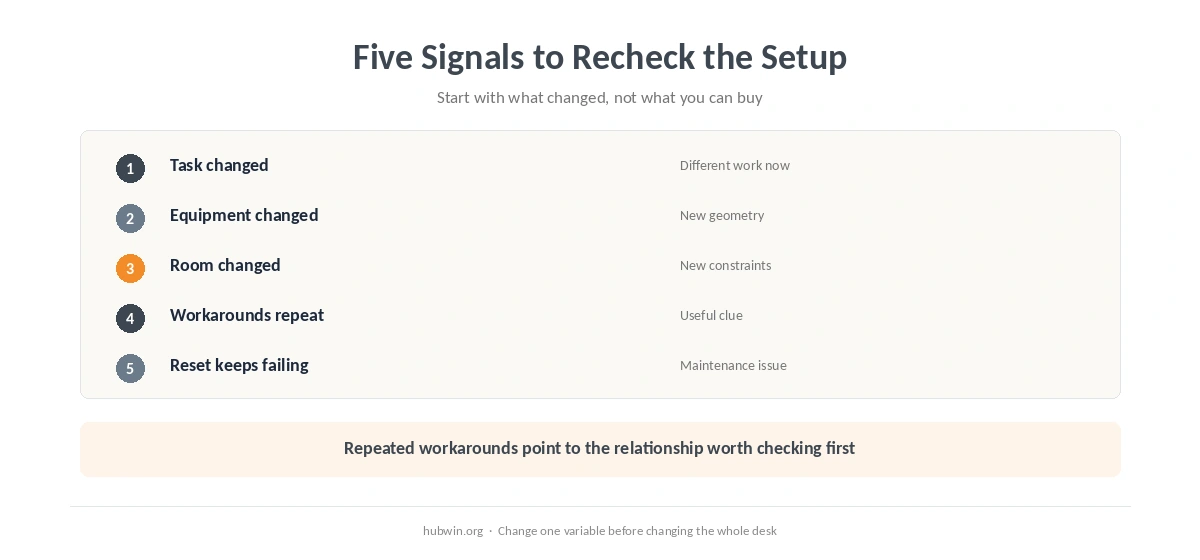
HSE’s workstation checklist asks whether the screen, keyboard, mouse, chair, work surface, lighting and work routine still support the user. Therefore, start with the last thing that changed. A new laptop may alter screen height. Adding a second display can change where you face. Changing the chair can shift elbow height relative to the desk. Use the home-office ergonomics checklist when several parts changed at once. In practice, how to notice when your setup stopped working means comparing today’s task with the setup that task inherited.
- Task change: you now spend much more time on calls, writing, coding, design or reference work.
- Equipment change: a new monitor, laptop, keyboard, chair or dock altered positions or available space.
- Room change: the desk moved, daylight changed, or a shared room created new constraints.
- Behavior change: you keep leaning, reaching, moving gear or enlarging content to make the setup workable.
- Maintenance change: cables, clutter or frequently used tools keep drifting back into the work zone.
For example, a display that once worked may no longer fit after you add another screen. Recheck monitor height and viewing distance instead of copying the old position. Likewise, a new keyboard can change how close the mouse sits, so compare the arrangement with the keyboard and mouse guide.
How to Notice When Your Setup Stopped Working: Run a Five-Minute Reset
Instead of rebuilding everything, test one relationship at a time. Start with the chair and work surface, then input devices, then the display, then the room. The chair-adjustment guide gives a useful baseline. After that, check whether the tools you use constantly still sit inside easy reach with the reach-zone guide.
Meanwhile, visual conditions can change even when furniture stays put. Seasonal sun, a moved lamp or a brighter screen can make yesterday’s arrangement harder to read. Compare the room with the screen-glare guide and home-office lighting guide before buying a new monitor.
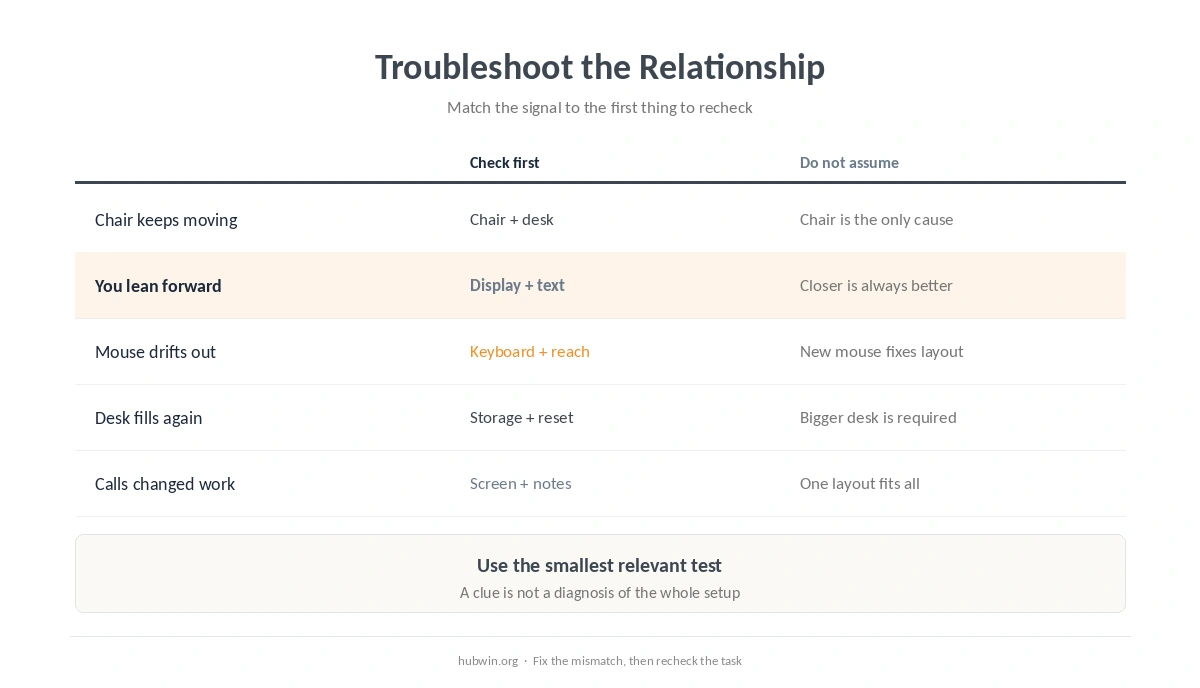
| Signal | What to check first | Avoid assuming |
|---|---|---|
| You keep moving the chair | Chair height and desk relationship | The chair itself is the only problem |
| You lean toward the screen | Text size, distance and display position | Closer is always better |
| The mouse drifts outward | Keyboard width and tool placement | A new mouse solves the layout |
| The desk fills up again | Storage and reset routine | You need a larger desk |
| Calls changed your setup | Camera, screen and notes placement | One layout fits every task |
If the problem is clutter rather than geometry, use the quick-reset desk routine or the easy-to-maintain office guide. Those pages solve a different problem from ergonomics: keeping the workspace usable after the setup is already reasonable.
Change One Variable, Then Recheck
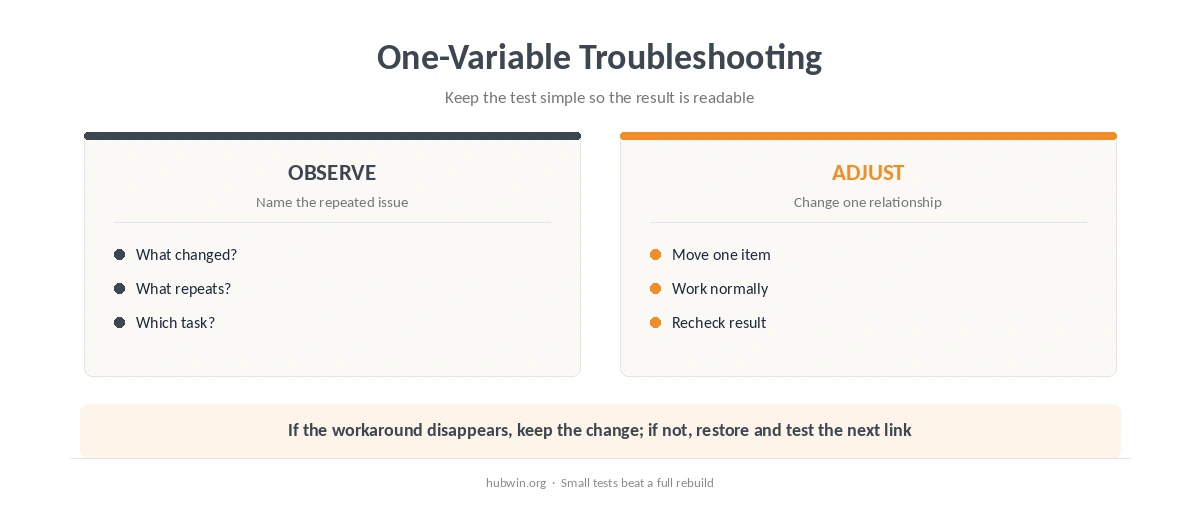
A workstation can become confusing when several fixes happen at once. Instead, change one variable and work with it long enough to notice whether the original workaround disappears. If the screen moves, leave the keyboard and chair alone. If the chair height changes, recheck feet and desk height before changing the monitor. That is how to notice when your setup stopped working without replacing unrelated equipment.
This approach also prevents unnecessary purchases. The habits-versus-gear guide shows where behavior matters more than equipment. The common home-office mistakes page is useful when you cannot identify one obvious cause.
How We Research
HubWin checked the HSE Display Screen Equipment workstation checklist, including its instruction to investigate “No” answers and later confirm that corrective actions solved the problem. We also checked NIOSH’s July 2026 office-environment guidance on over-reaching, prolonged sitting or standing and awkward work positions. Learn how HubWin researches articles.
FAQ
Sometimes, but not necessarily. A change in tasks, equipment, room conditions or work habits can make the same furniture less suitable.
No. Start with the relationship most connected to the repeated workaround, change one variable and recheck.
Official guidance supports reassessment when conditions or equipment change. It does not set one universal personal schedule for every home worker.
Repeated compensation is useful: leaning, reaching, shifting equipment or repeatedly changing the same setting to complete normal tasks.
No. Position, task layout, text size, lighting and tool placement can often be checked before a purchase.
The Bottom Line
The practical answer to how to notice when your setup stopped working is to watch for change and repeated compensation. Identify what changed, test the smallest relevant adjustment, and then recheck the task. A workstation is useful when it supports current work without constant workarounds.