
This article is general information, not medical advice. If pain is severe, lasting or getting worse, talk to a doctor. Read our health disclaimer.
To reduce screen glare, start with the path of the light rather than the brightness slider. HSE display-screen guidance tells users to adjust screens and lighting to avoid reflections and glare. Mayo Clinic also lists bright light and glare among factors that can contribute to eyestrain. However, glare is a comfort problem, not a diagnosis. See HSE DSE guidance.
Reduce Screen Glare by Finding the Light Source First
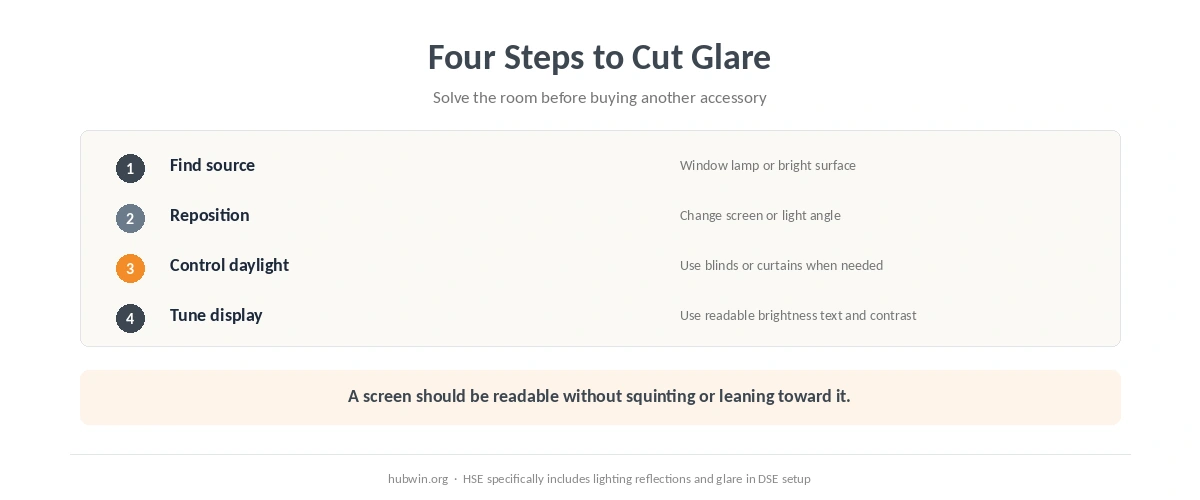
First, look at the screen from your normal working position and identify the reflection. A window, overhead light, desk lamp or bright wall may be creating the problem. HSE says DSE training should cover adjusting screens and lighting to avoid reflections and glare. Therefore, change the source or angle before buying an accessory.
The home-office lighting guide covers the room as a whole. If the glare appears mainly at one time of day, blinds or curtains can be a simple daylight control. Also, the bedroom-office guide is useful when the screen has to share a small space with a window or lamp. These room-level changes often reduce screen glare before you touch the display settings.
Reduce Screen Glare by Repositioning Before You Dim Everything
Mayo Clinic’s eyestrain guidance says glare and poor contrast can make computer use more visually demanding. It also lists dim light as another eyestrain factor. Therefore, an extremely dark room is not automatically better. Aim for a screen that is easy to read in the surrounding light. Read Mayo Clinic’s eyestrain guidance.
Next, check the screen angle and distance. To reduce screen glare without creating a new viewing problem, keep the display readable from your normal position. The monitor-distance guide compares official ranges, while the monitor-height guide covers vertical position. If you have to lean or squint because text is too small, increase text size before moving the display closer.
Also, keep the main display in front of you. The office ergonomics guidelines show how viewing position, input devices and chair setup work together. For laptops, the laptop ergonomics guide explains why raising the screen often requires a separate keyboard and mouse.

Reduce Screen Glare Without Treating Every Eye Symptom as a Lighting Problem
HSE says long spells of DSE work can lead to tired eyes, discomfort, temporary short-sightedness and headaches, but it does not cause permanent eye damage. It also says screen work can reveal eyesight problems that were already present. Therefore, fix obvious glare and then reassess the pattern rather than assuming the room explains everything. Read HSE eye-and-eyesight guidance. In other words, reduce screen glare as a comfort measure and then reassess what remains. For that related claim, see the evidence on screen time.
If eye discomfort appears with long screen sessions, the computer eye-strain guide covers breaks, dryness and viewing setup. If headaches are part of the pattern, use the computer-work headache guide. Meanwhile, the microbreak guide can help you vary visual demand without turning a timer into a medical treatment. A related Health & Comfort guide covers 20-20-20 rule and the limits of setup changes.
Finally, use the home-office ergonomics checklist if several factors are wrong at once. Glare often sits next to another mismatch, such as a screen that is hard to read, poor viewing distance or a chair position that encourages leaning forward.

When to See a Doctor or Eye-Care Professional
Get medical care for sudden or severe eye symptoms instead of continuing to adjust the room. Mayo Clinic advises emergency care for sudden vision changes, severe eye pain or irritation, vision loss or double vision, new flashes or floaters, halos around lights, severe headache, nausea or vomiting, and some neurological symptoms. See Mayo Clinic eye-problem guidance.
Also, see an eye-care professional if vision problems interfere with reading, writing, driving or normal daily activities. Persistent blur, pain or symptoms that do not improve after reasonable glare changes should not be attributed indefinitely to the monitor. The desk-setup-and-pain guide uses the same principle for musculoskeletal symptoms: a work pattern can justify a review without proving the cause.
How We Research
HubWin read HSE guidance on DSE training, workstations and eye tests, plus Mayo Clinic eyestrain and adult eye-problem guidance. Sources were checked on October 8, 2026. We use these sources to separate environmental glare control from medical claims about vision. Learn how HubWin researches articles.
FAQ
Identify the reflection source and change the light path. Repositioning the display, moving a lamp or using blinds can be more direct than changing every screen setting.
No. Mayo Clinic also lists dim light as an eyestrain factor. Use a comfortable balance between the display and the room instead of an extreme setting.
HSE says DSE work does not cause permanent eye damage, although long screen sessions can cause temporary tired eyes, discomfort and headaches.
Not necessarily. First change the window, lamp or screen angle. A filter can be a later option if the environmental source cannot be controlled.
Sudden vision changes, severe eye pain, vision loss, double vision and other warning signs need prompt medical care. Persistent problems that affect daily activities also deserve an eye-care assessment.
The Bottom Line
To reduce screen glare, find the light source, change the angle, control daylight and then tune the display for comfortable reading. Do not make the room extremely dark just to hide reflections. If symptoms persist after reasonable changes or include sudden vision loss, severe pain or other warning signs, treat that as an eye-care question rather than a monitor-setting problem.