
Professional video calls from home depend more on clear communication than on studio equipment. Start with intelligible audio and a stable camera that sits roughly at eye level. Put light on your face rather than behind it, and keep the background from competing for attention. Microsoft’s current Teams guidance uses the same basics: eye-level framing, front lighting and a clean or virtual background. See Microsoft’s presentation guidance.
Professional Video Calls from Home Start with Audio
People can tolerate an ordinary webcam more easily than audio they cannot understand. Before the call, listen for fans, street noise, echoes and notifications. The home-office noise guide explains how to remove controllable noise. The noisy-home focus guide covers what to do when the room cannot become quiet.
Use the microphone you already have before buying another one. Move closer if your voice sounds distant. Avoid typing directly beside the microphone when possible, and mute when you are not speaking in a noisy environment. Zoom’s current production guidance likewise puts minimal background noise and clear speech ahead of elaborate visuals.

Professional Video Calls from Home Need Simple Framing
Place the camera where the frame feels stable and predictable. Microsoft recommends an eye-level camera for presentation settings. You do not need to stare into the lens continuously. Raising a low laptop camera can also reduce the extreme upward angle from a machine sitting flat on the desk. The video-call office setup covers the room layout. The laptop and monitor guide explains how to separate screen and keyboard position for longer work. If symptoms are the main concern, see our guide on video call fatigue.
Keep the screen readable without leaning toward it. The laptop ergonomics guide and monitor-height guide show the broader workstation relationships. These are useful when video calls are only one part of the workday, rather than the reason to distort the whole desk around the camera.
Use Light and Background to Remove Distractions
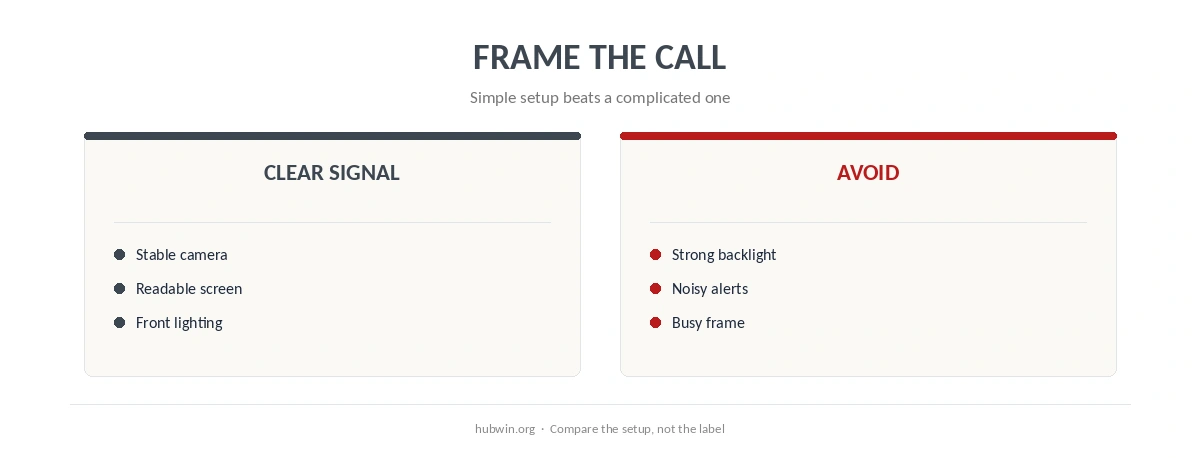
Face a window or lamp rather than placing a bright window behind you. Microsoft recommends front lighting and avoiding strong backlighting, shadows and glare. The home-office lighting guide covers the room more broadly. The screen-glare guide helps when camera-friendly light makes the display harder to read.
A professional background can be real or virtual. The important part is that it does not become the subject of the call. Remove obvious visual clutter from the camera frame, or use a blur or simple virtual background if your platform supports it. The distraction-free office guide and minimal setup guide are useful if the room is doing several jobs at once.

Run the Same Pre-Call Check Every Time
- Check that the intended microphone and camera are selected.
- Confirm that your face is lit from the front and not silhouetted by a window.
- Look at the camera preview and remove distracting items from the frame.
- Close or hide notifications that could appear during screen sharing.
- Open the document, tab or presentation you expect to share before the meeting starts.
This checklist is deliberately boring. Consistency is the point. If your desk changes between calls, the clean cable setup can reduce device swapping. The apartment-office guide has ideas for rooms where the background and workspace cannot stay dedicated to work.
For professional video calls from home, reliable basics are more useful than a complicated “creator” setup. Clear speech, stable framing and visible facial lighting make the conversation easier to follow. The rest is optional. That keeps professional video calls from home consistent without making the setup complicated. If that is the part you are changing next, see webcam angle.
How We Research
HubWin read Microsoft’s current Teams guidance on video presence and background controls on October 8, 2026. We also read Zoom’s current production and lighting guidance that day. These vendor pages describe platform and production practices rather than a universal etiquette standard. HubWin therefore uses them for concrete camera, lighting, audio and background checks, not for claims about career outcomes. Read Zoom’s production guidance and see the HubWin research method.
FAQ
No. Start with clear audio, stable framing and useful lighting before replacing hardware.
A roughly eye-level position usually produces a more neutral frame than a laptop camera far below your face.
Not inherently. A simple blur or neutral virtual background can be useful when the real room is distracting.
A well-lit face can improve an ordinary camera image considerably, while strong backlighting can make even a good camera look poor.
Open the right material in advance and hide notifications or unrelated windows that could appear.
The Bottom Line
For professional video calls from home, standardize the basics. Use the same audio, framing, lighting, background and short pre-call check each time. You do not need to turn the room into a studio. A dedicated setup guide covers professional home office.