
This article is general information, not medical advice. If pain is severe, lasting or getting worse, talk to a doctor. Read our health disclaimer.
Desk setup fixes work best when they solve one awkward relationship at a time. Start with the chair and work surface, then bring the keyboard and mouse close, and only then place the screen. OSHA treats the workstation as a connected system rather than a collection of isolated accessories. See OSHA’s computer workstation guidance.
Start Desk Setup Fixes With the Parts You Can Move
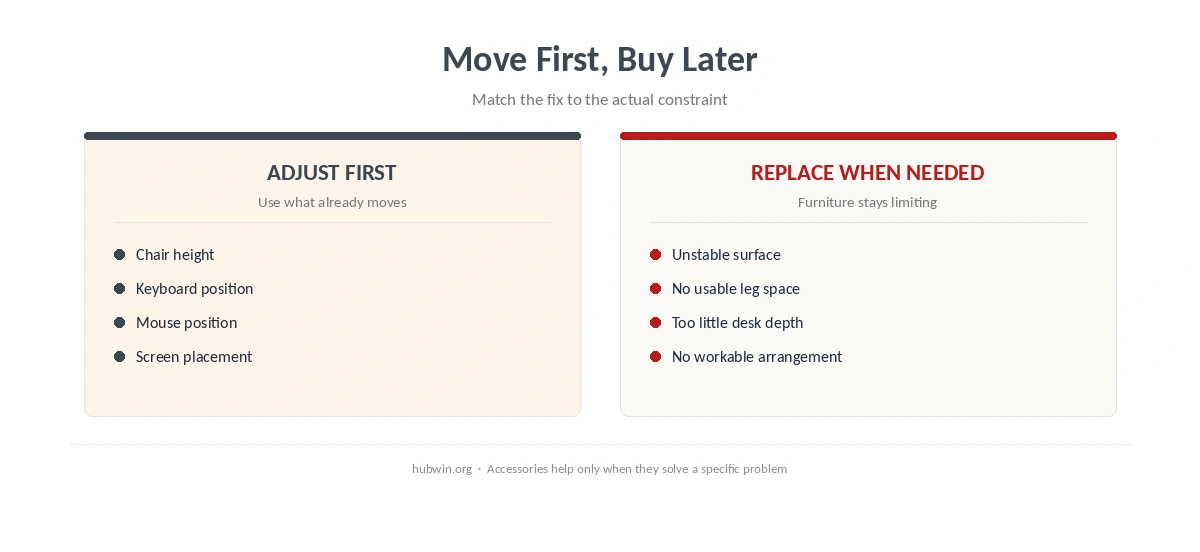
A non-ergonomic desk does not automatically mean you need a new desk. HSE says home workers may be able to reach a comfortable, sustainable posture without office furniture, although unsuitable furniture still needs attention. That makes adjustment the sensible first step. Raise or lower the chair, change where the screen sits, move input devices, and remove anything that forces you to reach around clutter. Read HSE’s home-working DSE guidance. For that workstation detail, see ergonomic setup for tall users.
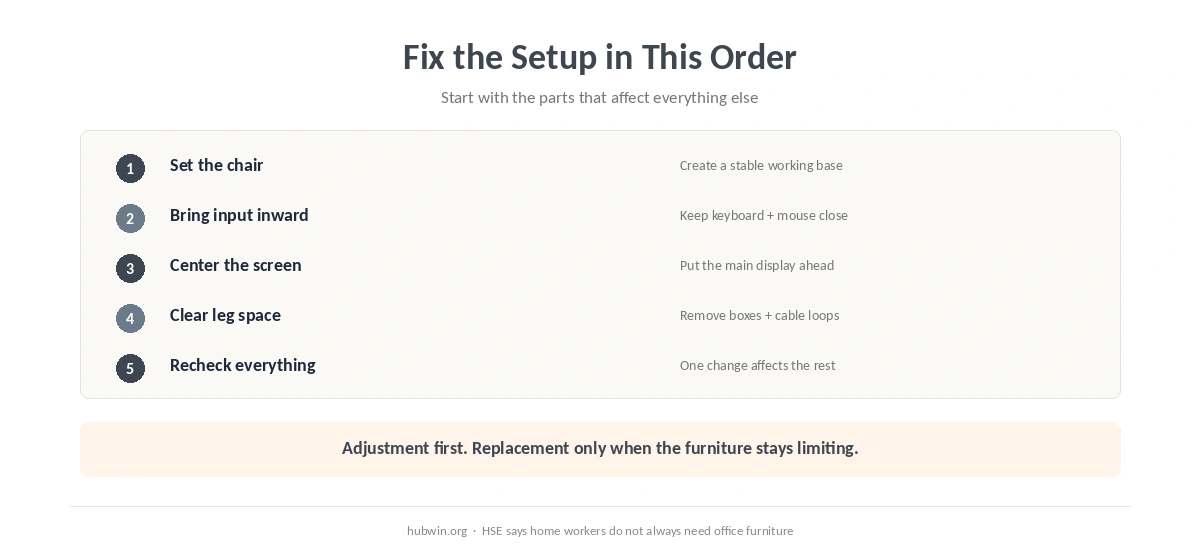
- Set the chair first. Aim for a stable position with the back supported and the feet supported. If the desk is fixed, the chair often becomes the main height adjustment.
- Bring the keyboard and mouse inward. OSHA says both should sit where you can work with relaxed shoulders and elbows close to the body.
- Center the primary screen. Put the display you use most directly in front of you instead of working with the head turned.
- Clear the space under the desk. Boxes, drawers and cables should not force the legs into one narrow position.
- Recheck the whole setup. One change can affect the others, so revisit the screen and input devices after changing chair height.
If the chair itself is the weak point, use the bad-chair adjustment guide. For a more complete sequence, the office-chair setup guide walks through the controls before you adjust the rest of the workstation.
Desk Setup Fixes for the Keyboard, Mouse and Screen
The next desk setup fixes should reduce unnecessary reaching and turning. OSHA recommends placing the keyboard directly in front of you, keeping the mouse next to it, and locating the main monitor directly ahead. CCOHS likewise recommends keeping the keyboard and mouse close enough that the elbows stay near the body. See the CCOHS keyboard guidance.
A useful order is input devices first, screen second. If the keyboard is too high, raising the screen alone does not solve the relationship between the desk and your arms. Likewise, moving the mouse closer can be more useful than buying a different mouse when the real problem is reach. The keyboard and mouse position guide explains that part in more detail.
For the screen, use the monitor-height guide and the monitor-distance guide rather than relying on a fixed number from a generic desk diagram. Official guidance differs somewhat on exact viewing distances, so the screen still needs to fit the user and the task.
Cheap Fixes Are Useful When They Solve a Specific Constraint
Desk setup fixes can be inexpensive when the goal is clear. HSE explicitly notes that a cushion can provide extra back support or raise the seated position in some setups. OSHA also lists a footrest when the feet cannot rest flat because of the workstation height. Those are targeted fixes, not proof that every desk needs more accessories.
The same principle applies to a laptop. If long sessions force a tradeoff between screen height and keyboard position, separate the two functions. The laptop ergonomics guide explains why an external keyboard and mouse can make screen placement more flexible. For low-cost priorities across the whole room, see what to fix first on a budget.
Know When the Desk Is the Actual Limitation
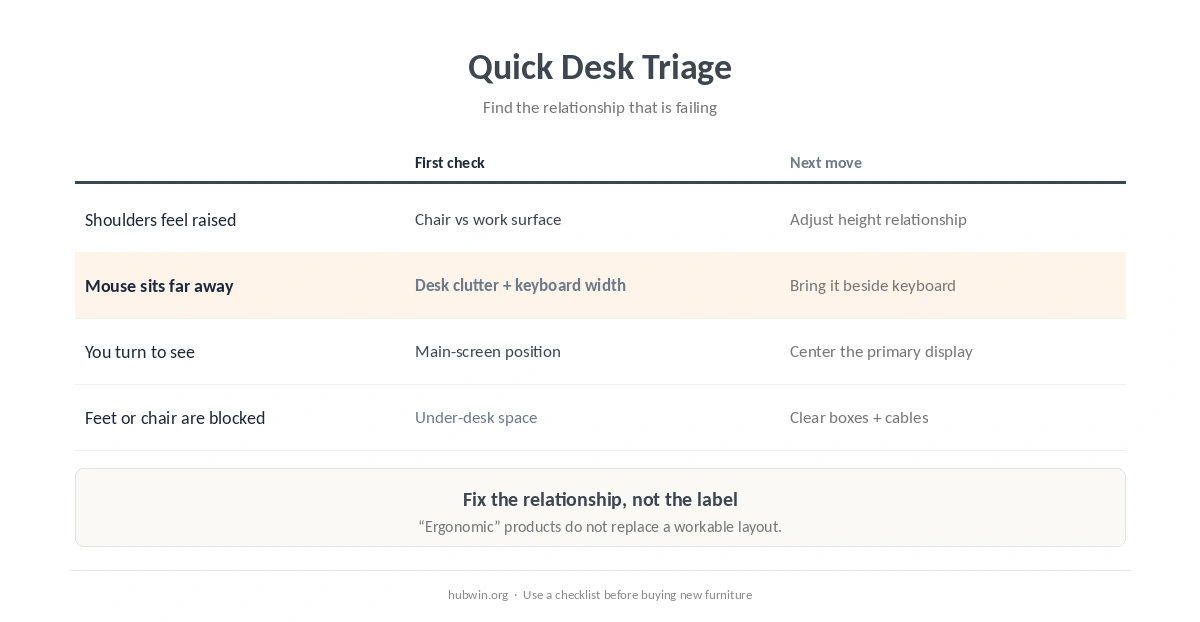
Adjustment has limits. A work surface that is unstable, too shallow for the equipment, or blocked underneath may keep creating compromises no matter how carefully you move the accessories. OSHA’s evaluation checklist asks whether the workstation has enough adjustability and room for the user to change posture and reach frequently used items easily. If several answers remain “no” after simple changes, the furniture itself may be the constraint.
Before replacing anything, compare the setup against the home-office ergonomics checklist and simple ergonomic changes that actually help. That keeps the decision tied to a real problem instead of the word “ergonomic” on a product page.
How We Research
HubWin checked current OSHA computer-workstation guidance, the OSHA workstation evaluation checklist, HSE home-working DSE guidance, and CCOHS keyboard guidance on October 8, 2026. We use official recommendations as starting points and avoid turning general workstation guidance into medical promises. Learn how HubWin researches articles.
FAQ
Often, yes. Start with chair height, input-device reach, screen position and clear leg space. Replace the desk when its dimensions or stability keep forcing compromises.
That can be one option if the chair still supports you and your feet can also be supported. Recheck the keyboard, mouse and screen after the change.
Not by itself. It can make screen placement easier, but chair position, input-device reach and available space still matter.
Fix the relationship between the chair and the work surface first. Then place the keyboard and mouse, followed by the screen.
No. A useful accessory solves a specific constraint. If moving existing equipment fixes the problem, extra hardware may add clutter without improving the setup.
The Bottom Line
Use desk setup fixes in a sequence: establish a stable sitting position, bring the work close, place the screen for straightforward viewing, then check the whole system again. Replace furniture only when the furniture itself keeps blocking a workable arrangement.