
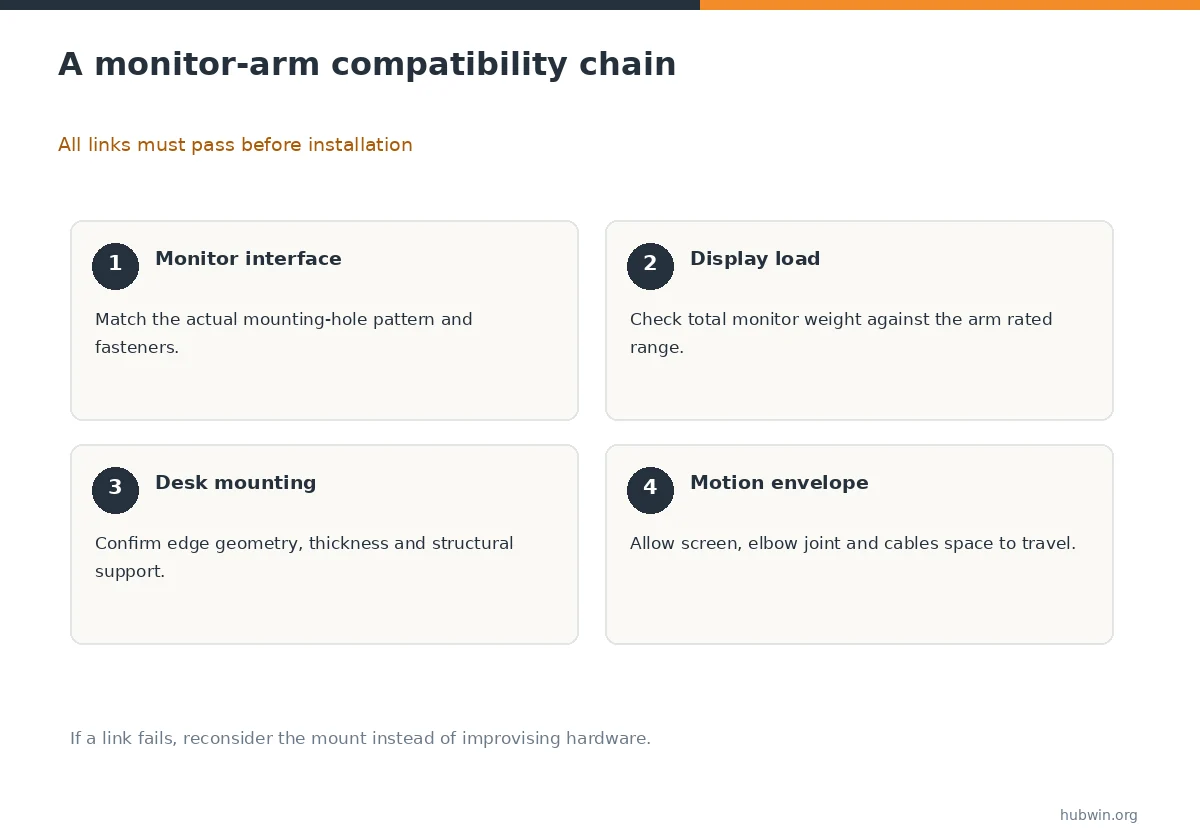
A monitor arm is not just a screen accessory. It is a load-bearing connection between the monitor and a particular desk or wall. Before shopping, confirm the monitor mounting interface, its weight, the mount’s approved load range, the furniture’s suitability and the adjustment you genuinely need.
This guide focuses on hardware compatibility and installation decisions. If your supplied monitor stand already places the screen well, an arm is optional. If it cannot, an arm may offer more height, depth or shared-workstation flexibility—but only when the full support chain passes the checks below.
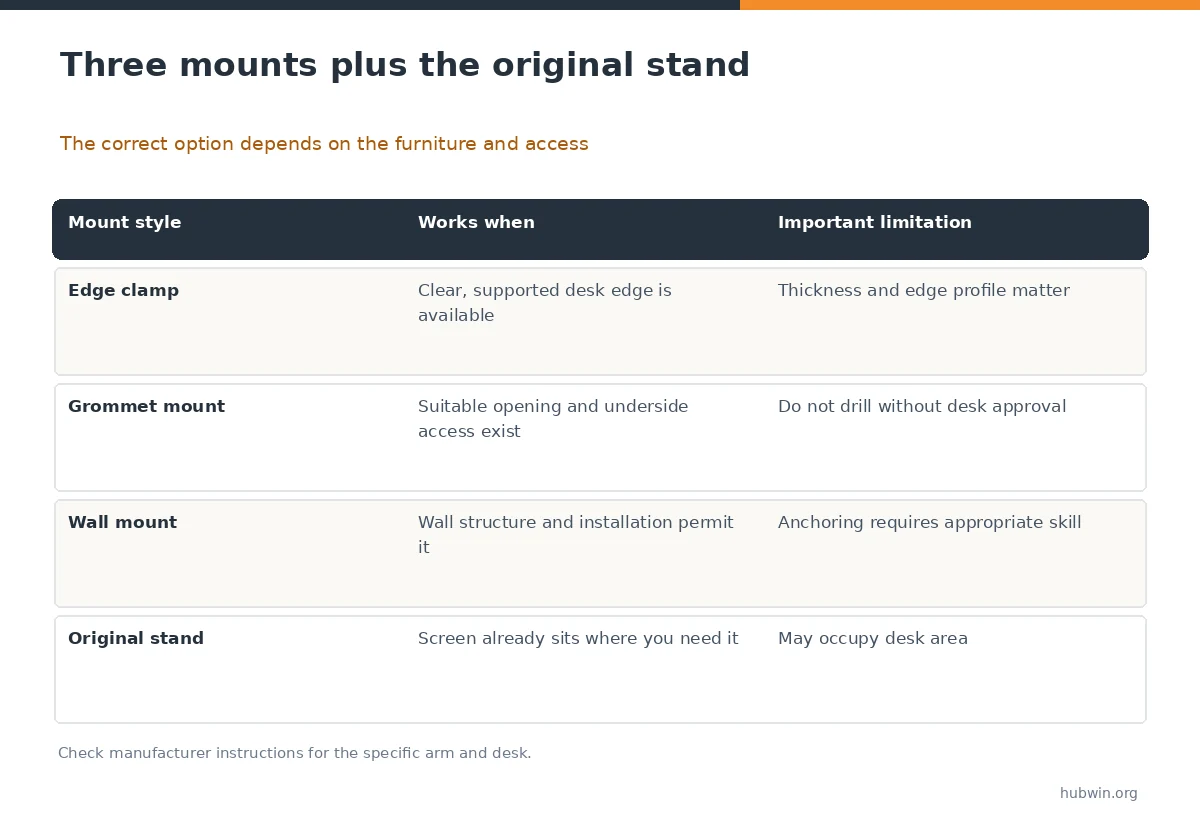
Choose the mount method before the arm style
A desk-edge clamp can avoid drilling, but it requires a suitable edge, adequate clearance below the surface and a desk that the arm maker approves. Decorative aprons, beveled edges and shallow back clearances can prevent a secure clamp even when the desk appears thick enough.
A grommet mount passes through an existing suitable opening or a manufacturer-approved new opening. Do not assume that a cable hole is structurally suitable. Wall mounts transfer the support problem to wall structure, anchors and placement; if you cannot verify those conditions, consider professional installation or a safer desk-based option.
Verify the screen interface and the full load
Check the monitor documentation for the rear mounting pattern and whether any adapter plate is required. Many arms mention familiar VESA hole patterns, but a printed size alone is not proof that the supplied screws have the right length or that a recessed mounting area clears the arm plate.
Match the screen weight to the arm manufacturer’s supported range. Read whether the rating includes or excludes the original stand, optional adapters and attached accessories. Also confirm limits for ultrawide screens or curved models, where leverage and screen dimensions can affect compatibility beyond simple total weight.
Map the desk, wall, and movement envelope
Measure the usable mounting edge rather than only the desktop thickness. Look for crossbars, drawers, cable trays and the wall behind the desk. A gas-spring arm may need room to swing backward and upward; an articulated arm may collide with shelves or an adjacent display.
Before buying, sketch the intended center of the display at your normal seat. Check that the arm can reach that position without placing its joints against their stops. OSHA’s monitor guidance prioritizes a workable viewing position, not a specific brand or arm technology.
Install in the manufacturer’s order and test carefully
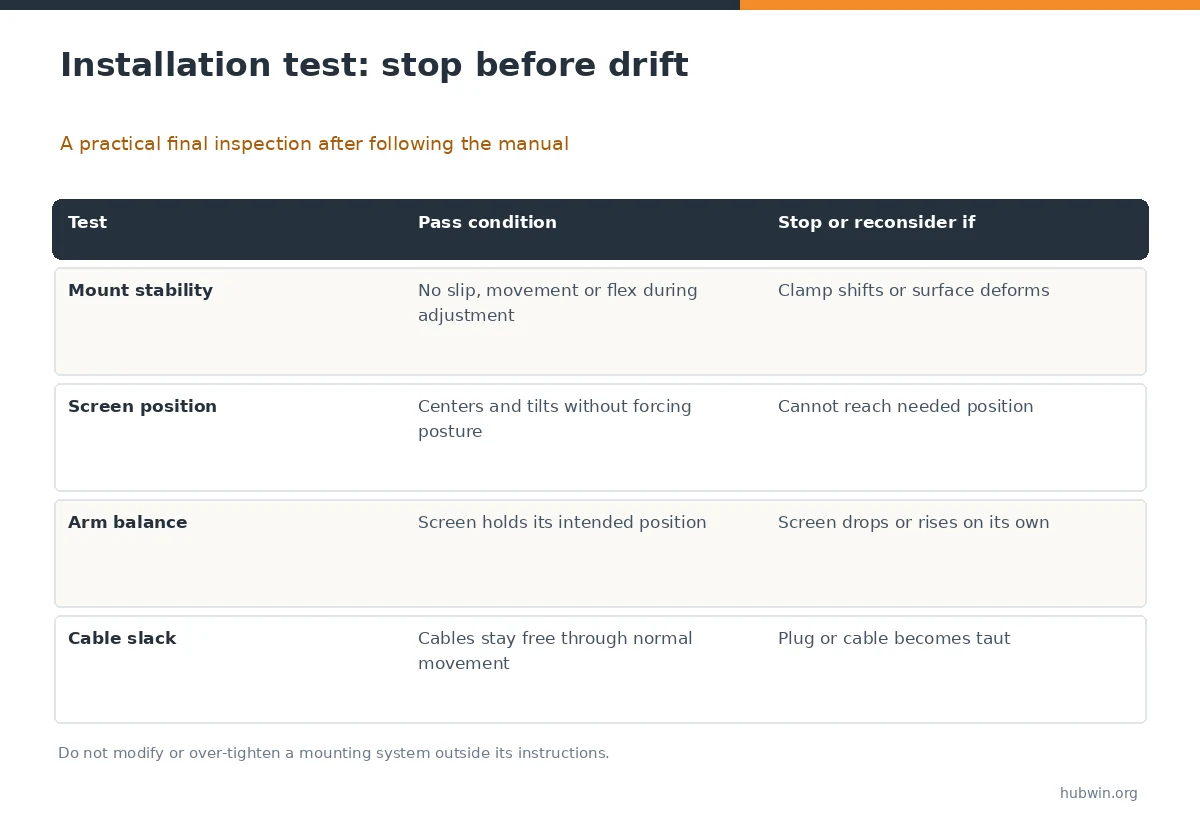
Assemble the clamp or grommet fitting exactly as instructed and do not substitute screws, pads or reinforcements without approval. A thin, hollow or glass work surface may be inappropriate for a concentrated clamp load. If the table maker forbids clamping, do not override that restriction.
Attach the monitor with the specified fasteners, secure the joints and adjust the tension according to the manual while supporting the screen. During the first positioning test, watch for clamp movement, desk flex, unexpected drop, unintended spring lift or a monitor that refuses to hold a position. Stop and correct those issues rather than continuing to use an unstable mount.
Keep enough cable slack for ordinary adjustments
Route the power and display cables with relaxed loops through the full positions you plan to use. Do not bind cables tightly around a moving hinge. The cable should not pull on a monitor port when you lower, rotate or move the display forward.
For dual monitors, test each screen’s full travel separately, then both together to confirm that the arms do not collide. Compare your actual working layout with which screens you use most and the space they occupy.
When an arm is not the right purchase
Keep the factory stand if it already reaches the target position and leaves sufficient desk area. A different stand or a safe riser can be simpler when the desired change is modest. Do not install an arm solely to gain an empty space under the monitor if the desk structure or cable arrangement cannot support it safely.
Make your final decision from the measured constraint: insufficient height, frequent repositioning, required screen depth or a genuinely cramped desk. If none applies, an arm adds parts and installation steps with little practical benefit.
How We Research
We start with OSHA monitor-placement goals and its purchasing checklist, then apply a hardware compatibility audit. VESA patterns, load ratings, fastener requirements and clamp limitations vary by product, so readers must verify those claims in the exact display, arm and desk manuals before installation. Our methodology and limitations are explained on the About HubWin page.
Sources
OSHA workstation monitor and layout guidance. Reviewed October 26, 2026.
OSHA purchasing checklist for monitors. Reviewed October 26, 2026.
OSHA desks and workspace clearance. Reviewed October 26, 2026.
No. The display needs a compatible mount interface or an approved adapter, and the arm must support its actual weight, size and installation conditions.
No. Edge thickness, underside geometry, material and the desk manufacturer’s restrictions all matter. A fragile or unsuitable surface may not support the load.
No. Confirm the hole pattern, screw specification, recessed back clearance, load range and any adapter requirements in the equipment manuals.
Check the documented adjustment and supported load range while supporting the monitor. If the arm still drifts or the mount shifts, stop use and seek manufacturer help.
Only if its exact model is designed for two displays and each and combined load fall within its specifications. Check collision space and both cable routes.