
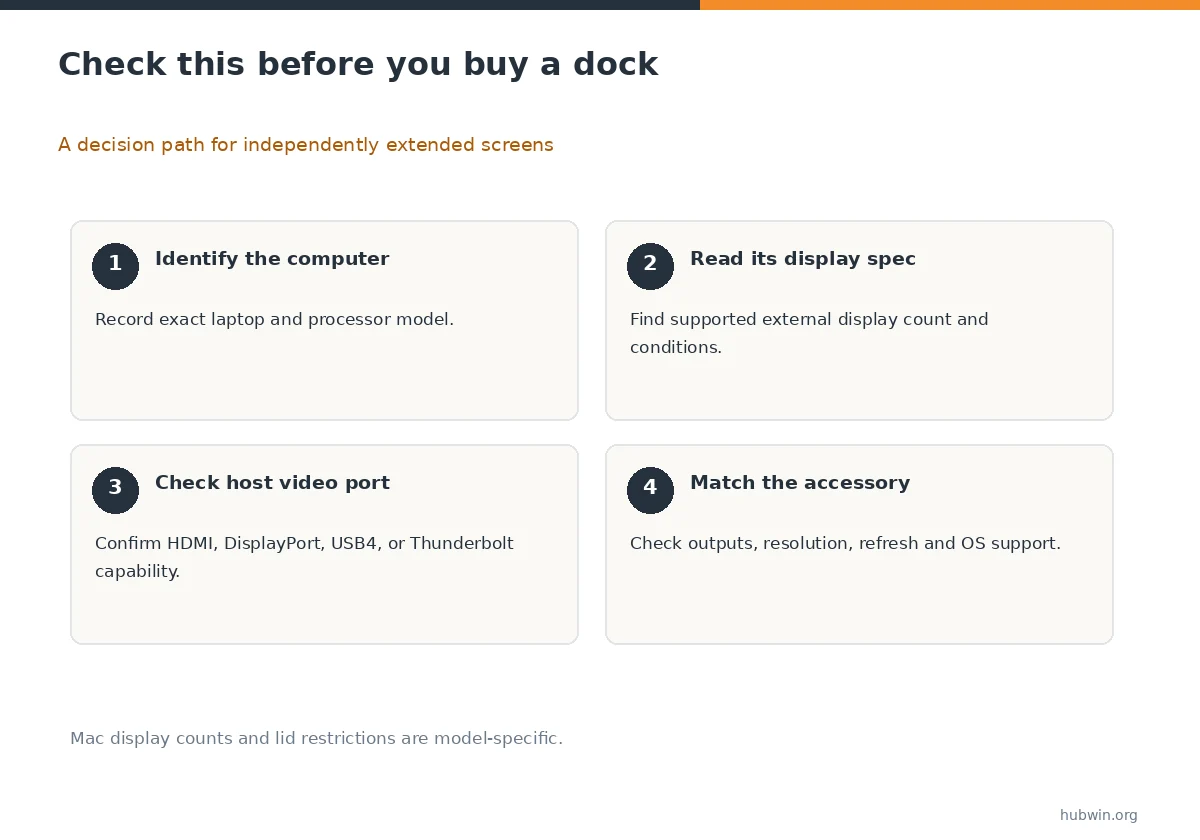
To connect multiple monitors to a laptop, find out how many independent external displays the laptop supports before buying a hub or dock. A dock with two HDMI sockets does not guarantee two extended screens. The laptop’s processor, display engines, output ports, operating system and the accessory’s connection method all matter.
The practical sequence is capacity first, connection second, operating-system layout third. When you follow that order, you avoid purchasing a dual-output adapter for a computer that can only duplicate the picture or support fewer native displays than the dock offers.
Step 1: check the exact laptop’s native display capability
Look up the device model and processor in the manufacturer’s specifications. Check the count of external displays, supported resolutions and refresh rates, and any conditions relating to an open or closed laptop lid. Apple’s MacBook documentation illustrates why those details matter: display support differs by model and chip, so no single MacBook-wide count is safe.
On Windows, check the manufacturer’s published output capabilities and whether a port is wired to support the intended display mode. Two USB-C sockets can have different specifications. If you do not know what the port supports, pause before selecting an MST adapter or dock.

Step 2: choose a connection path that matches the host
For a laptop with direct HDMI and compatible USB-C video output, two separate cables may be the simplest supported route. A dock can consolidate connections, but only if it and the laptop support the same display protocols and count of streams. USB-C video often depends on DisplayPort Alternate Mode or on a USB4 or Thunderbolt path.
Multi-Stream Transport (MST) can provide separate extended monitors on supported Windows hardware. Native macOS handling differs, so do not buy an MST-only dual-HDMI hub on the assumption that it offers two independent macOS desktops. Some software-driven USB graphics products may offer additional displays with limitations; they are not equivalent to native video connections.
Step 3: connect and configure Windows displays
Power the monitors and select the right input on each. Connect the first display and confirm that it works. Then connect the second through a supported direct port or dock. In Windows, open Settings > System > Display and use Identify to match the screen labels with the physical displays.
Use the Multiple displays section to detect a missing screen, then select Extend when you want a desktop that spans screens. You can also press Windows + P and choose Extend. Drag the labeled displays to match their physical positions and test by moving the pointer from one screen to the next. Microsoft documents this exact arrangement workflow.
Step 4: connect and configure macOS displays
Open Apple menu > System Settings > Displays to inspect connected screens and their arrangement. If the Mac does not see a display, Apple recommends checking the cable, correct input and computer display support; holding Option can reveal Detect Displays on supported versions.
Verify the external display count for your specific Mac before troubleshooting a second monitor. For some models, the maximum differs depending on chip or lid position. Connecting extra video ports through a dock cannot automatically exceed the hardware’s documented native display capacity.
Troubleshoot one link at a time
If the display stays dark, check power and monitor input first, then try a known working cable and a direct laptop connection. That helps distinguish an accessory problem from a monitor or host problem. If you see the same image on two screens, confirm Extend mode. Then investigate whether the dock or host supports independent outputs.
If a monitor works alone but fails when another is connected, compare the combined resolution and refresh requirements with the exact laptop and dock specifications. For intermittent video, test cables and accessory power separately before replacing monitors. Avoid unofficial fixes that claim to bypass all hardware limits.

Plan a useful physical layout after the video works
Set the screen you use most directly in front of you. If both displays share the main work evenly, center them as a pair. Keep cables routed without tension and provide space for the laptop, keyboard and mouse. The right digital arrangement should reflect where each screen actually sits.
If you routinely move the laptop, think about how the setup behaves when docking and undocking. On Windows, settings can remember window locations by monitor connection. Test unplugging and reconnecting before relying on the setup during calls or presentations.
How We Research
We checked Microsoft’s Windows display configuration steps and Apple’s model-specific display limits and detection instructions. We distinguish ordinary native video paths from MST and driver-based USB graphics. The practical compatibility step is always the exact laptop specification; a generic port count cannot establish external monitor capacity. Our methodology and limitations are explained on the About HubWin page.
Sources
Microsoft multiple-monitor setup for Windows. Reviewed October 26, 2026.
Apple MacBook Pro external display specifications. Reviewed October 26, 2026.
Apple Mac display connection and detection help. Reviewed October 26, 2026.
Microsoft USB-C connection troubleshooting. Reviewed October 26, 2026.
No. The laptop must support the required independent display paths, and the dock must use a compatible method for the computer and operating system.
Open Settings > System > Display and choose Extend under multiple displays, or press Windows + P and select Extend. Arrange the display boxes to match your desk.
macOS does not natively use ordinary DisplayPort MST hubs for two independent extended desktops in the same way as compatible Windows setups. Check your exact Mac and adapter.
Some driver-based USB graphics solutions can add non-native screens, but they introduce software and workload limitations. They do not change native display hardware support.
Check power, input selection, cable seating, the correct laptop port and the operating system’s Detect Displays feature. Then review dock-specific compatibility and firmware guidance.