
A USB-C hub adds ports to a laptop, but its connector shape does not tell you what features will work. Two laptops can have identical-looking USB-C sockets and differ in display output, data speed or charging support. Likewise, a hub can have HDMI, USB-A and Power Delivery labels while offering important limits on how those features work together.
Choose a hub by building a compatibility chain: laptop port, upstream connection, hub specification, cable and final device. Start with the precise job—an external monitor, Ethernet, USB storage, card reader or host charging—then confirm every link rather than shopping by port count alone.
Do not confuse USB-C, USB speed, and USB Power Delivery
USB Type-C describes a connector system. It does not by itself guarantee USB4, a particular USB data speed, DisplayPort video or USB Power Delivery. USB-IF says product capabilities vary and manufacturers should clearly state supported protocols. A port that supplies charging and ordinary USB data may still lack native video output.
Read the actual laptop specifications for the particular port. If your model has several USB-C sockets, do not assume all of them share the same capabilities. Prefer documented device and hub specifications to badges printed on retail photos.
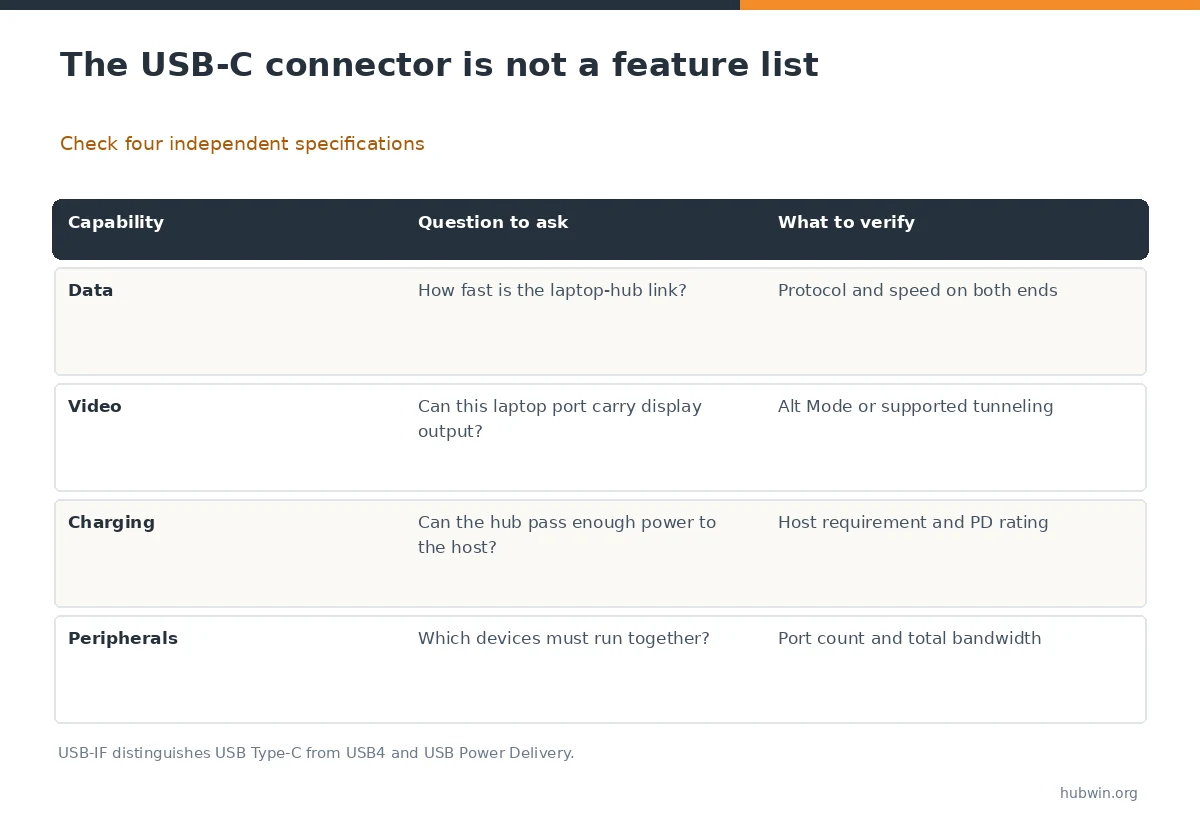
Match video output from the laptop all the way to the screen
An HDMI jack on a hub is not proof that any laptop can feed that jack. Many adapters require DisplayPort Alternate Mode or a supported USB4 or Thunderbolt display path from the host. Microsoft notes that a USB-C display connection can fail when the PC, adapter or cable does not support the required alternate mode.
Check resolution, refresh-rate and multi-monitor restrictions together. A hub advertising a video mode under one host protocol may offer less under another. If you need two separate extended screens, also check the computer’s display-engine limit, operating system and whether the hub uses MST or a specific graphics driver.
Power pass-through has multiple ratings
Distinguish power entering the hub from power actually reaching the laptop. The hub may reserve part of its input for its own electronics and attached devices. Therefore, a large charger rating on the box is not automatically the host charging wattage delivered after pass-through.
Verify support for USB Power Delivery on the laptop, charger, cable and hub. Follow the manufacturer’s adapter guidance, especially for laptops with demanding power requirements. For reliability, use approved power supplies and avoid assuming an unpowered hub can run several power-hungry accessories at once.

Consider shared bandwidth and physical port layout
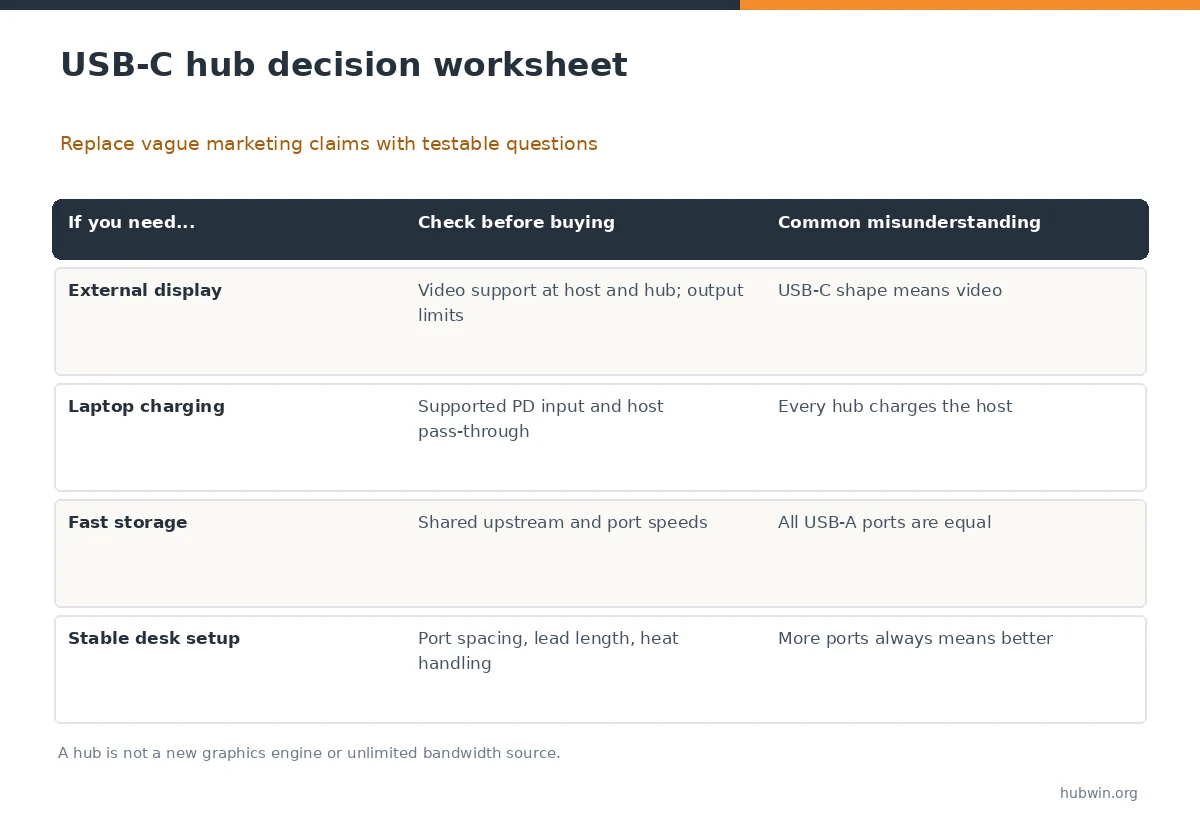
Many devices share one upstream laptop connection. Adding storage, Ethernet, a webcam and displays does not create additional upstream bandwidth. If you move large files while running a high-bandwidth screen or capture device, consult the hub’s limits for simultaneous use rather than adding each advertised peak rate together.
Port count also has a physical side: can you insert wide USB plugs beside each other, and is the short captive lead long enough to reach your chosen laptop position? A card reader is only useful if it supports the card format you actually own. Avoid feature lists that solve problems you do not have.
Use the shortest reliable purchase checklist
Write down the exact laptop model and port specification first. Then list the devices that must operate simultaneously, including monitor resolution and refresh needs, data devices and host charging. Match those requirements against a hub’s detailed specification sheet and any compatibility list.
If the manufacturer has no clear documentation for simultaneous outputs, treat that as an unknown rather than an invitation to guess. An exchange or return option can reduce purchase risk, but it does not replace knowing whether the port supports the required feature.
When you probably need a dock instead
A small hub can be ideal for a mouse, keyboard, card reader or one supported screen. A dedicated dock may offer better power, cable management and documented multi-display configurations for a fixed workstation. However, a dock does not override the laptop’s native display limits simply because it has more connectors.
For a portable laptop, carrying fewer adapters might matter more than a large port selection. For a permanent desk, stable wiring and compatibility with the specific computer can justify a dock. Choose based on the connection tasks, not the accessory category name.
How We Research
We use USB-IF definitions to separate the connector, data protocol and power protocol. Microsoft’s USB-C troubleshooting guide supports the compatibility-path checks for video and cables. Capabilities still depend on each host, hub and monitor combination; we do not infer specific transfer rates or charging output from the shape of a port. Our methodology and limitations are explained on the About HubWin page.
Sources
USB-IF USB Type-C product language guidance. Reviewed October 26, 2026.
Microsoft troubleshooting USB-C capabilities. Reviewed October 26, 2026.
USB-IF USB4 technical overview. Reviewed October 26, 2026.
No. USB-C identifies the connector. Check whether the computer’s actual port supports a compatible video mode and whether the hub and cable carry it.
Only when the laptop and hub support suitable USB Power Delivery pass-through and the charger and cable meet the documented requirements.
The host may lack the necessary video support, the cable or adapter may be incompatible, or the selected display input may be wrong. Verify the complete path.
No. USB4 is a higher-level protocol that uses USB-C connectors. A USB-C socket may implement other, more limited protocols.
Not automatically. The laptop and operating system impose display limits. A hub or dock exposes supported paths but does not create unlimited native display capacity.