
When a mouse double clicks once, first find out whether Windows interpreted the press as two clicks or whether one application reacted twice. Do not replace the mouse or change drivers before you have a simple reproduction test. This guide separates the operating-system double-click timing setting from a physical switch that may issue extra events.
Use a neutral test such as selecting a desktop item once, then opening it with two deliberate presses. On managed computers, ask IT before installing a button remapper or unapproved diagnostic utility. For a wireless mouse, note its battery status and whether the receiver or Bluetooth link changes the behavior.
Confirm what counts as one click
Make five slow single presses on the same harmless item and watch whether an application opens unexpectedly or a selection toggles twice. Next repeat in File Explorer and another program. A consistently repeated extra action across apps is different from a browser tab or web page that is slow to respond.
Test the primary button and, when appropriate, a second mouse. Keep the same computer and app for the comparison. A touchpad that works normally does not prove the external mouse is faulty, but it helps narrow the affected input path.
| Observation | Best next check | Do not conclude yet |
|---|---|---|
| Only one app acts twice | Review the app’s click behavior | That the mouse switch failed |
| Several apps register extras | Repeat with a different mouse | That a Windows update caused it |
| Only one physical button misfires | Test another supported computer | That a sensitivity slider fixes contacts |
| Wireless clicks lag or disappear | Check link and battery first | That lost inputs equal extra clicks |
Check double-click speed without changing everything
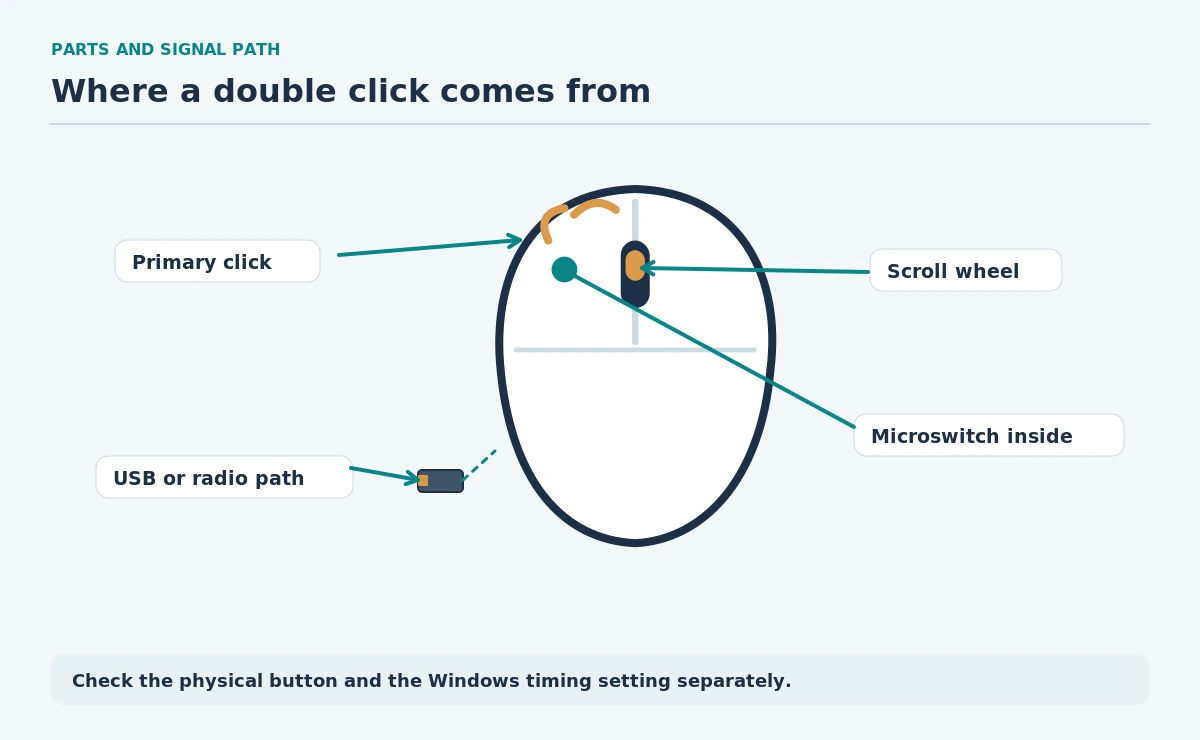
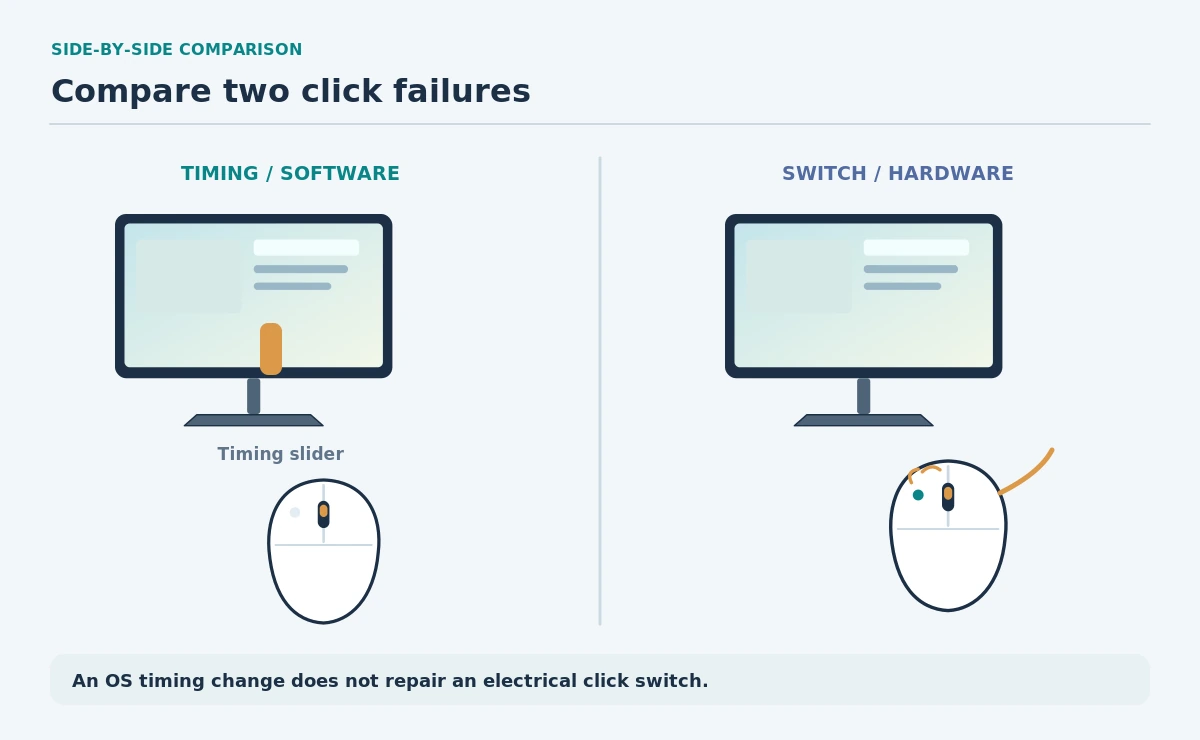
In Windows 11 open Settings, then Bluetooth & devices > Mouse > Additional mouse settings. Microsoft documents a Double-click speed slider on the Buttons tab. Set a comfortable timing and try the folder test shown in that window. This controls how quickly Windows recognizes two intentional clicks; it does not repair a switch that produces unwanted electrical events.
Write down the original position and return to it if your test does not improve. Also check the primary-button selection. A left-handed layout can make an unexpected button seem like a click fault when someone selected a different primary button.
Separate connection problems from switch problems
For a wireless mouse, use the vendor-approved charging or battery procedure and remove obvious receiver obstructions. Try a direct computer USB data port if a receiver currently uses a hub. Do not assume every radio problem causes double-clicking; connection problems often look more like missed or delayed inputs.
For a wired mouse, examine the cable and connector for damage. Stop using a cable with cut insulation or a bent connector. If the same physical button sends extra presses on two suitable computers, hardware service or replacement becomes more plausible than another Windows adjustment.
| Setting or part | What it controls | Reversible test |
|---|---|---|
| Double-click speed | Timing of two planned presses | Adjust and restore slider |
| Primary button | Which button selects | Verify Left or Right |
| Receiver / Bluetooth link | Transport of input events | Try a supported direct path |
| Physical micro-switch | Click event from the mouse | Compare mouse and computer |
Run a controlled decision sequence
Keep a short log: mouse model, connection type, affected button, affected apps, and whether the fault persists after a restart. Check whether the app has a custom double-click action or accessibility feature before making systemwide changes.
Start with the affected program when the problem appears in one place only. Two different mice producing the same symptom suggest checking system settings and approved drivers. A misfiring button on one mouse across computers points toward manufacturer service or warranty support, not opening the switch.
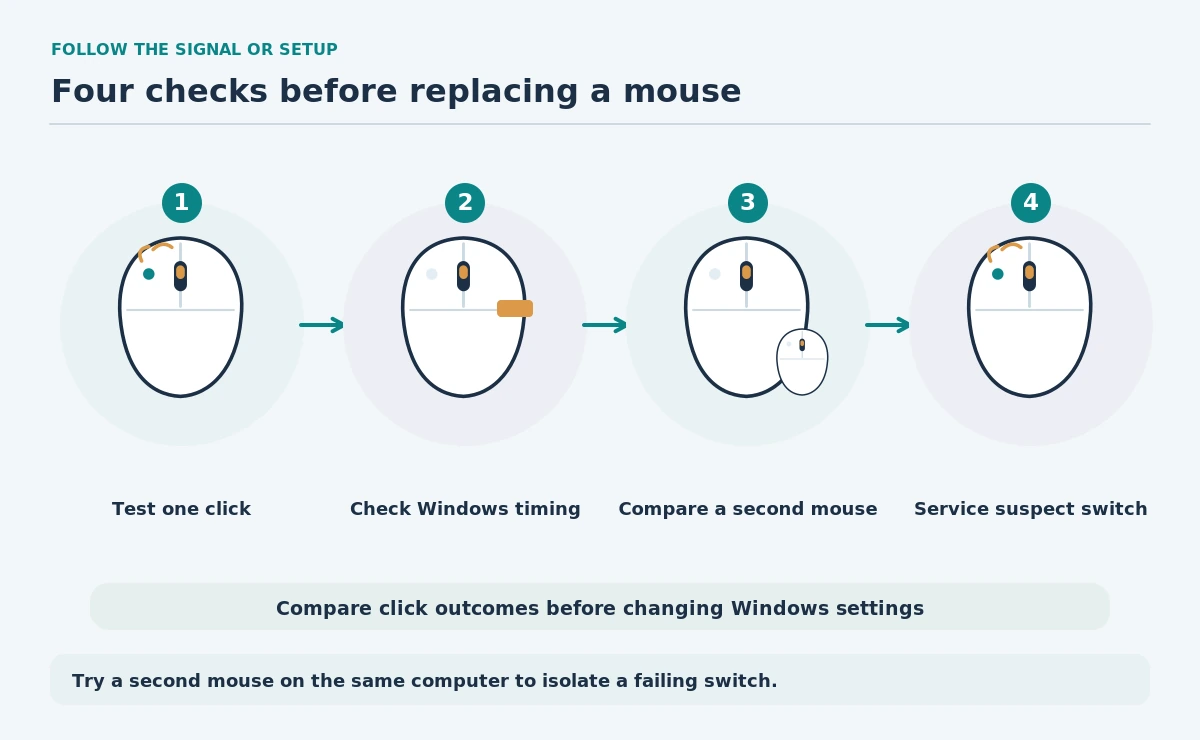
- Reproduce five slow single clicks in two apps.
- Check Windows double-click speed and button mapping.
- Compare another mouse on the same computer.
- Test the suspect mouse on another supported device.
- Escalate a repeatable, one-mouse-only switch issue.
When to replace the mouse or ask for help
A mechanical switch can wear or become contaminated, but you cannot diagnose its contacts from the cursor alone. Avoid spraying cleaners into a powered mouse. Use manufacturer cleaning directions only, and do not perform electrical repairs on a work device.
For a computer with workplace support, send a short reproduction sequence and the result of the second-mouse comparison. That evidence is more useful than saying the mouse feels too fast. This article does not claim a failure rate for any brand or model.
How We Research
We reviewed Microsoft’s current Windows mouse-settings documentation and OSHA input-device advice. Our steps use controlled comparisons rather than claims of laboratory testing. This article includes no hands-on mouse or switch testing. Read our editorial method.
Sources
Microsoft — Change mouse settings — Documents double-click speed and primary-button controls.
OSHA — Pointer/Mouse — Explains mouse placement, fit and the importance of a suitable input device.
It changes the timing Windows uses for two deliberate clicks. A switch that sends extra events may still misfire after the timing adjustment.
Check the app or File Explorer interaction mode and repeat in a second app. This helps distinguish intentional single-click opening from unwanted double-click input.
Do not disassemble or spray liquid into a powered work mouse. Follow the manufacturer’s cleaning and service instructions for that exact model.
No. A weak battery or poor wireless link can affect input reliability, but that alone does not establish the cause of repeated click events.
Consider service or replacement when the same button reliably misfires across appropriate computers and other mice behave normally on those systems.